Visual edit: change your page by clicking on it
Click a heading, button or image in the preview to change its text, colors or position, without writing a message and without using any credits.
On this page
For a small fix (a typo in a heading, a button color, a photo to swap), you don't need to ask the agent. Click the element right in the preview and change it. Tweaks are free: no credits are used.
Open edit mode
- Open your project and show the Preview.
- Click Edit in the bar above the preview. The button becomes Edit mode.
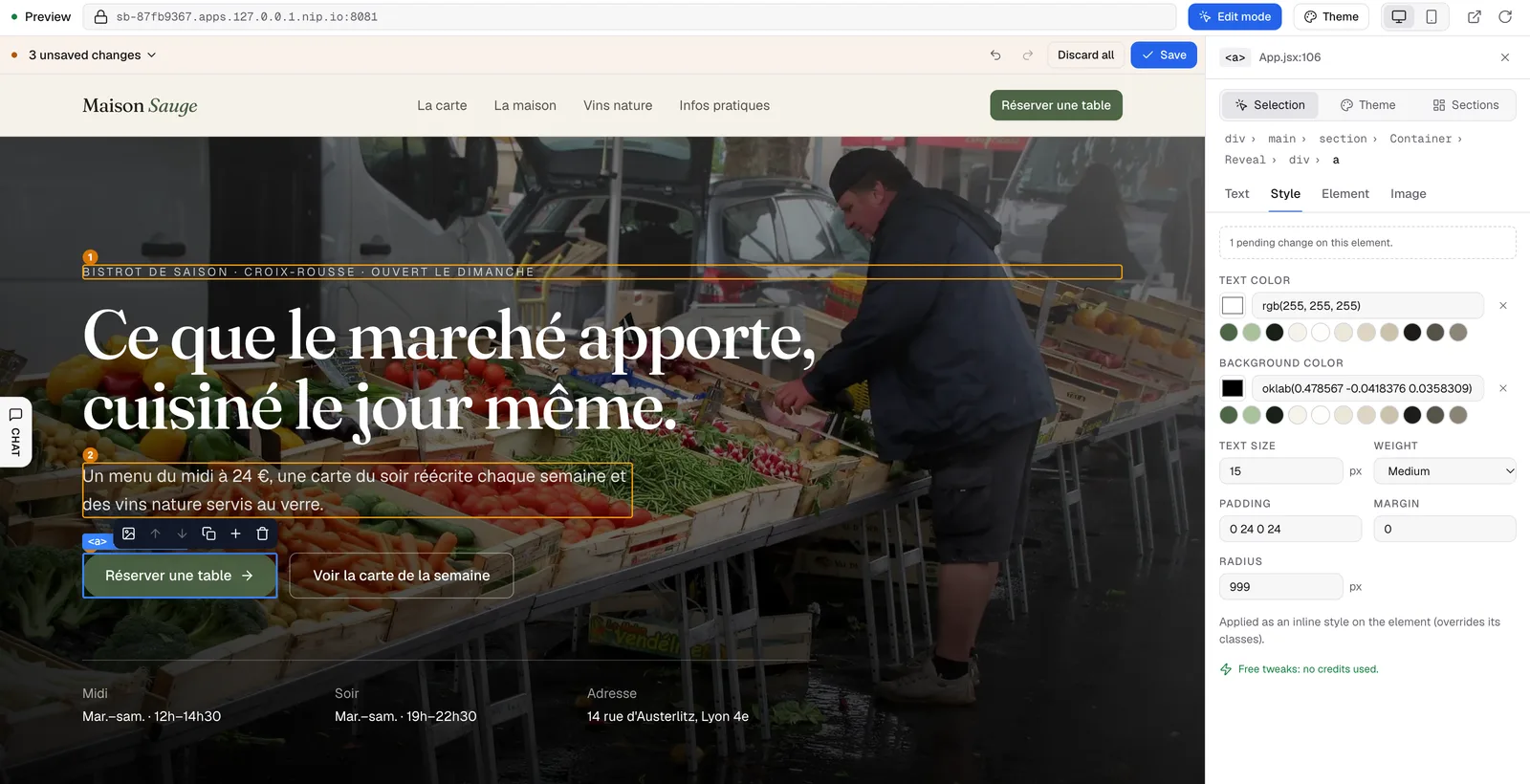
- Move your mouse over the page: each element gets an outline. Click the one you want to change.
- The Edit element panel opens on the right, with the element's name and where it lives in the code.
Note
the Edit button turns on once the preview is ready. If it stays grayed out on an older project, its preview started before the update: the button becomes active the next time the preview wakes up, after it has gone idle.
Change a text
- Select the element and open the Text tab.
- Edit the text in the field (or double-click the text in the preview to type over it): the preview updates as you type.
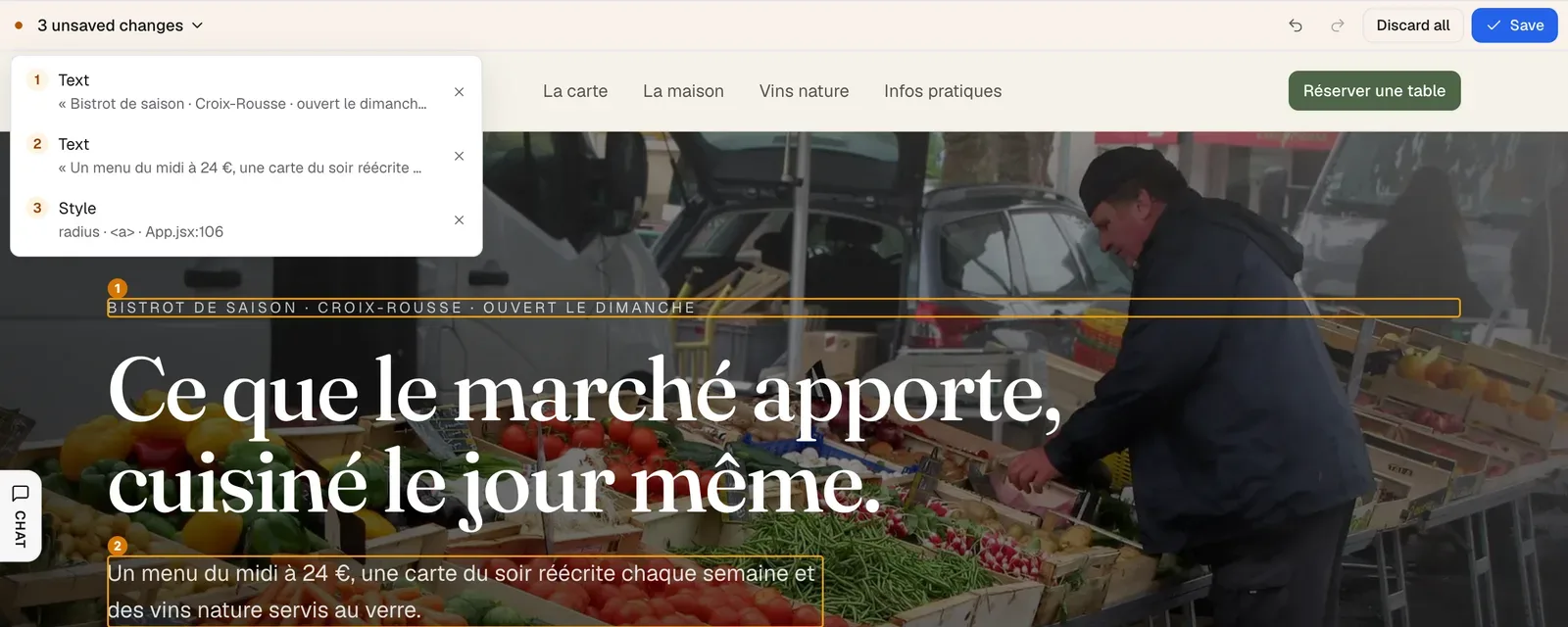
- The change joins the list of unsaved changes: it gets a number in the preview, and a bar appears above the preview (« 1 unsaved change »). You can go on with other elements.
Click Save in that bar: every pending change is written into the code at once, as one "Visual edit" version in Versions, without reloading the page. Undo and Redo (⌘Z / ⇧⌘Z) step through your changes, Discard all drops them, and clicking a line of the list shows that change in the preview.
If the text comes from your data (a menu dish loaded from the database, for example), the panel tells you: change it in Dashboard › Data, or click Ask the agent. When the text is defined in another file, FromScratch changes it at its source and tells you where.
Change the style
The Style tab offers the Text color, the Background color (picked from the Site colors or Custom), the Text size, the Weight, the inner and outer spacing, and the Radius. In the preview, drag the blue handles of the selected element to set its inner space above and below, and its width.
Move, duplicate, delete, add
The small bar above the selected element, and the Element tab, let you:
- Move up or Move down the element, or drag it (or its ⠿ grip) before or after another element of the same block;
- Duplicate it;
- Delete it (it is hidden in the preview until you save; Undo brings it back);
- Add an element after it or inside it: Heading, Paragraph, Button, Link, Image or Link to a file.
The preview shows the result right away and the action joins the list of unsaved changes: Save, in the bar above the preview, applies it to the code with the rest. Some actions are grayed out, with the reason shown: an element repeated in a list or generated by code is better changed through your data or by the agent.
Change an image
Click any picture (an image, a background, a product photo) and open the Image tab: upload your own file, pick a free photo or ask the agent, and edit the Alt text. Everything is explained in Change an image.
Change the colors of the whole site
Click Theme above the preview (or the Theme mode of the panel, no selection needed): it lists the colors, fonts and dimensions of your site. A change applies everywhere they're used, in Light, Dark or Both mode, and joins the list of unsaved changes: Save writes it with the rest. See Edit texts, lists, files and theme.
Limits
- Tweaks change the preview. To update your live site, Republish.
- You can't make tweaks while the agent is working: wait until it has finished its reply. If the agent starts working while changes are unsaved, they are discarded (a message tells you), so save first.
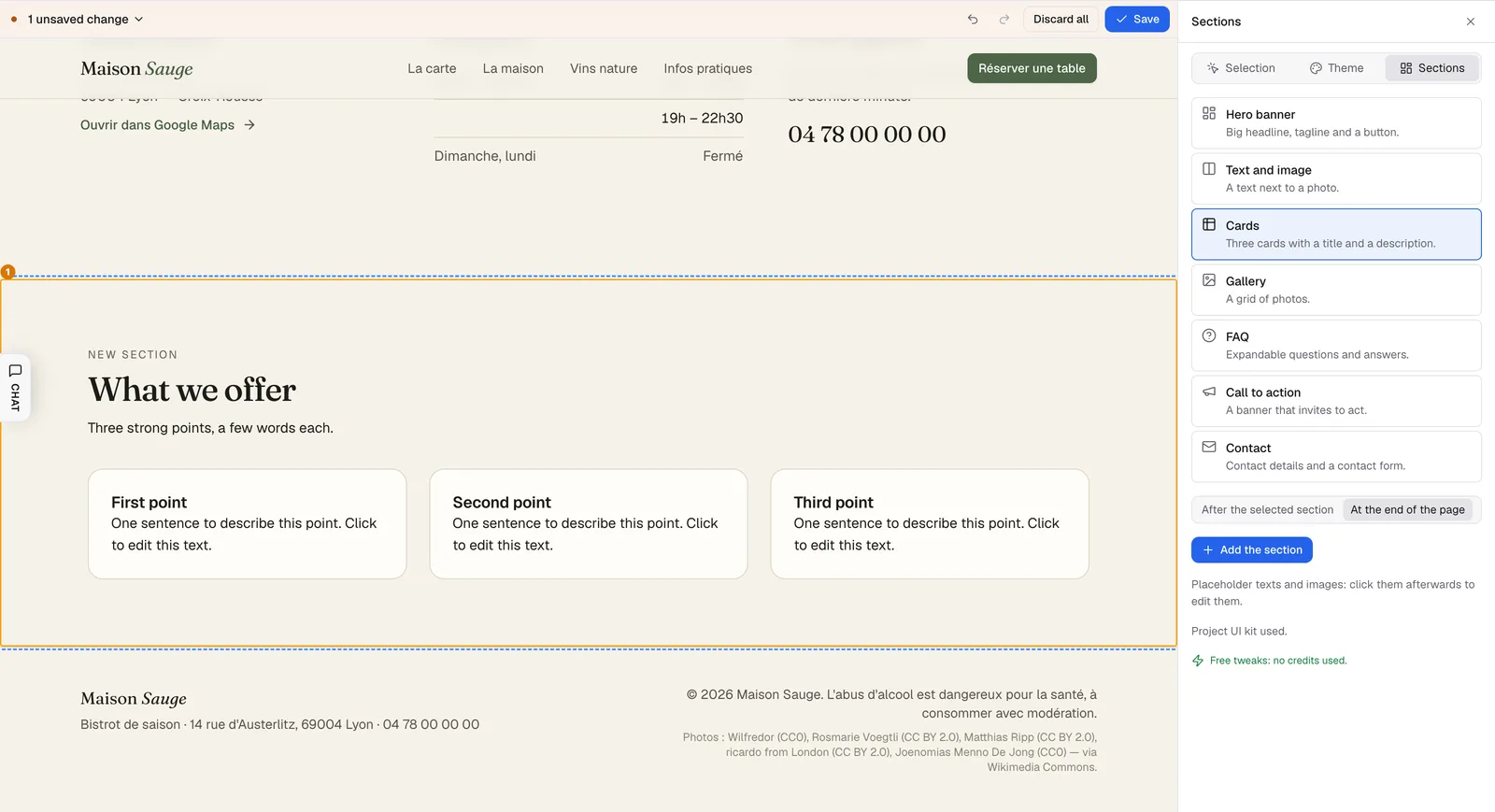
- To add a ready-made section, use the Sections mode of the panel. For a new page or a new feature, describe it to the agent instead.
FAQ
Does the agent know I changed the page?
Yes. It's notified and rereads the file before touching it.
How do I undo a saved tweak?
In Dashboard › Versions, go back to the previous version. See Versions: undo anything.
What if I leave edit mode without saving?
FromScratch first asks « Leave without saving? ». Your unsaved changes are kept while you move between pages of the preview or sections of the dashboard.
Related
Was this page helpful?
Thanks for your feedback!
Couldn't send your feedback. Please try again later.