Code, export and GitHub
Browse and edit your project's files, download it as a ZIP, or push its history to a GitHub repository you already have.
On this page
Your site belongs to you, code included. The Code section of the dashboard lets you read every file, make a small fix by hand, download the whole project or send it to GitHub. These features are included in the Starter and Pro plans.
Browse the files
- Open Dashboard › Code.
- Expand the folders in the tree on the left, or type a name in Search a file.
- Click a file. Its content appears on the right, with code highlighting.
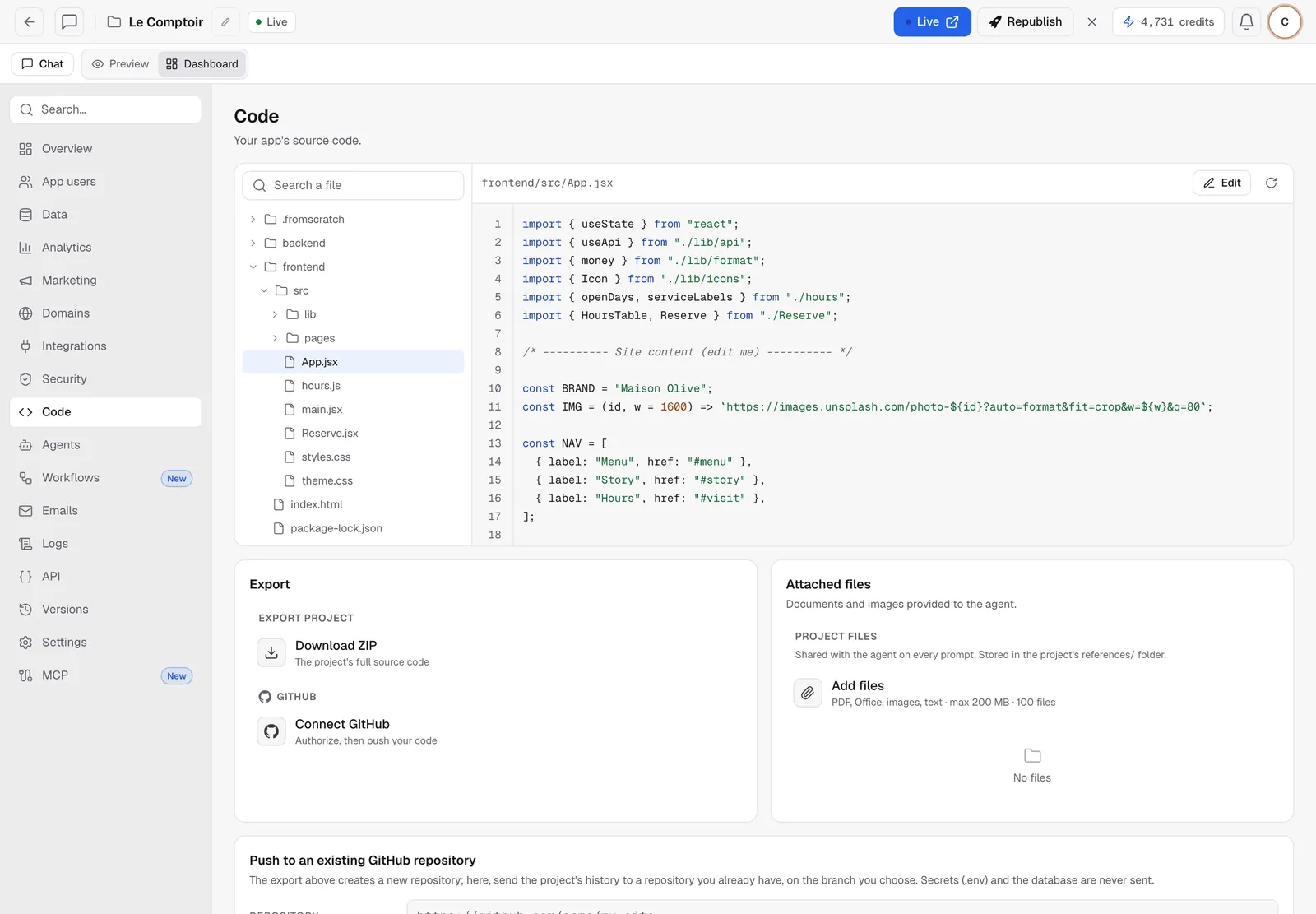
In a React app, the site lives in frontend/ (pages in frontend/src) and the API in backend/. Technical folders (node_modules, caches, the database) are hidden, along with files larger than 1 MB. In .env files, values are replaced with dots.
Edit a file by hand
- Open the file, then click Edit.
- Make your change and save.
- The preview updates, a "Code edit" version is created in Versions, and the agent is told to reread the file before touching it.
Note
editing is refused while the agent is working, so it doesn't overwrite its own work. If the file changed in the meantime, a message tells you. Reload it with the circular arrow before trying again.
.envfiles can't be edited here. Use Security › Environment variables instead.
For a change to text, color or an image right on the page, visual edit is often easier.
Download the project
In the Export card, Download ZIP gets you the project's full source code. You can open it in your editor, hand it to a developer or host it somewhere else.
Send the code to GitHub
There are two ways, depending on whether the repository already exists.
Create a new repository
In Export, click Connect GitHub, allow FromScratch on GitHub, then push. A new repository is created in your account with the project's code.
Push to an existing repository
- On GitHub, create a "fine-grained" access token, limited to your repository, with the Contents: Read and write permission.
- In the Push to an existing GitHub repository card, fill in the Repository (
https://github.com/you/my-site), the Access token and the Branch (mainby default). - Click Save. FromScratch checks that the token can write to that repository.
- Click Push. The project's version history is sent to the branch you chose.
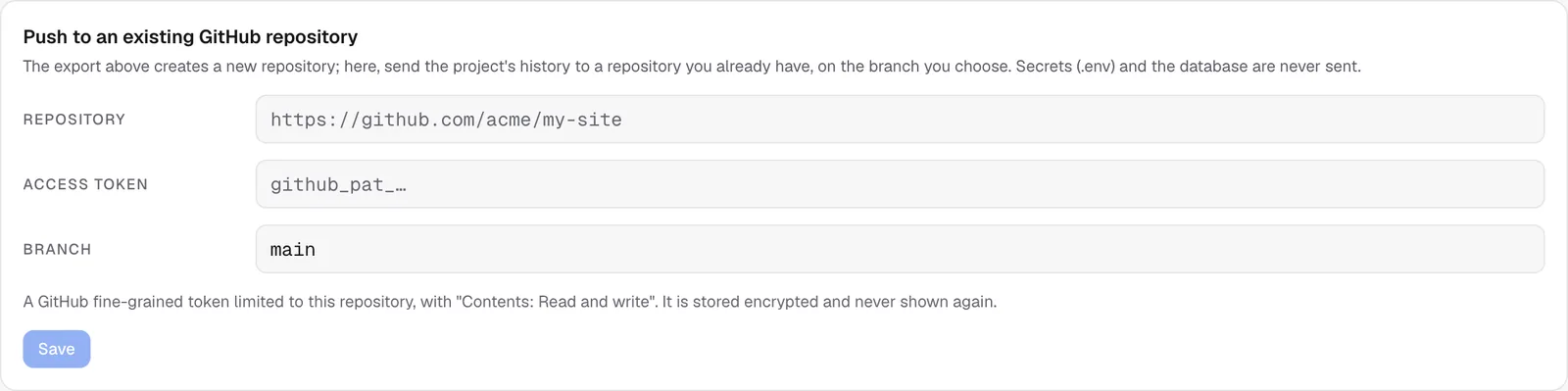
The token is stored encrypted and is never shown again. Secrets (.env) and the database are never sent.
Warning
if the branch contains commits made elsewhere, the push is refused rather than overwriting that work. Pick another branch (for example
fromscratch) and merge it on GitHub.
Attached files
The Attached files card lists the documents you've given the agent (PDFs, Office documents, images). Add files adds more. They're shared with the agent in every message (up to 100 files and 200 MB).
FAQ
The Code section is locked.
The code browser and the export are part of the Starter and Pro plans. See Plans and the free tier.
Can I edit the code on GitHub and bring it back?
Not automatically. The push goes from FromScratch to GitHub. To continue a project you changed elsewhere, import it as a ZIP from the home page.
Related
Was this page helpful?
Thanks for your feedback!
Couldn't send your feedback. Please try again later.