The project dashboard
Everything around your site in one place: visitors, data, SEO, integrations, security, code, versions and settings.
The Dashboard brings together everything you need to keep your site running once it's built: signed-up people, data, visit statistics, SEO, connected services, keys and secrets, code, versions and settings. There's nothing to install. Every project has its own.
Open the dashboard
- Open your project from My projects on the home page.
- At the top of the right-hand area, click Dashboard (next to Preview).
- Pick a section in the left-hand column. The Search… bar at the top of that column filters the sections: type "dns", "stripe" or "csv" to go straight to the right one.
To go back to your site, click Preview. The Chat button at the top left shows or hides the conversation with the agent. Hide it to give the dashboard the full width. The page address changes with each section (…/dashboard/marketing, for example), so you can bookmark it or share it with a collaborator on the project.
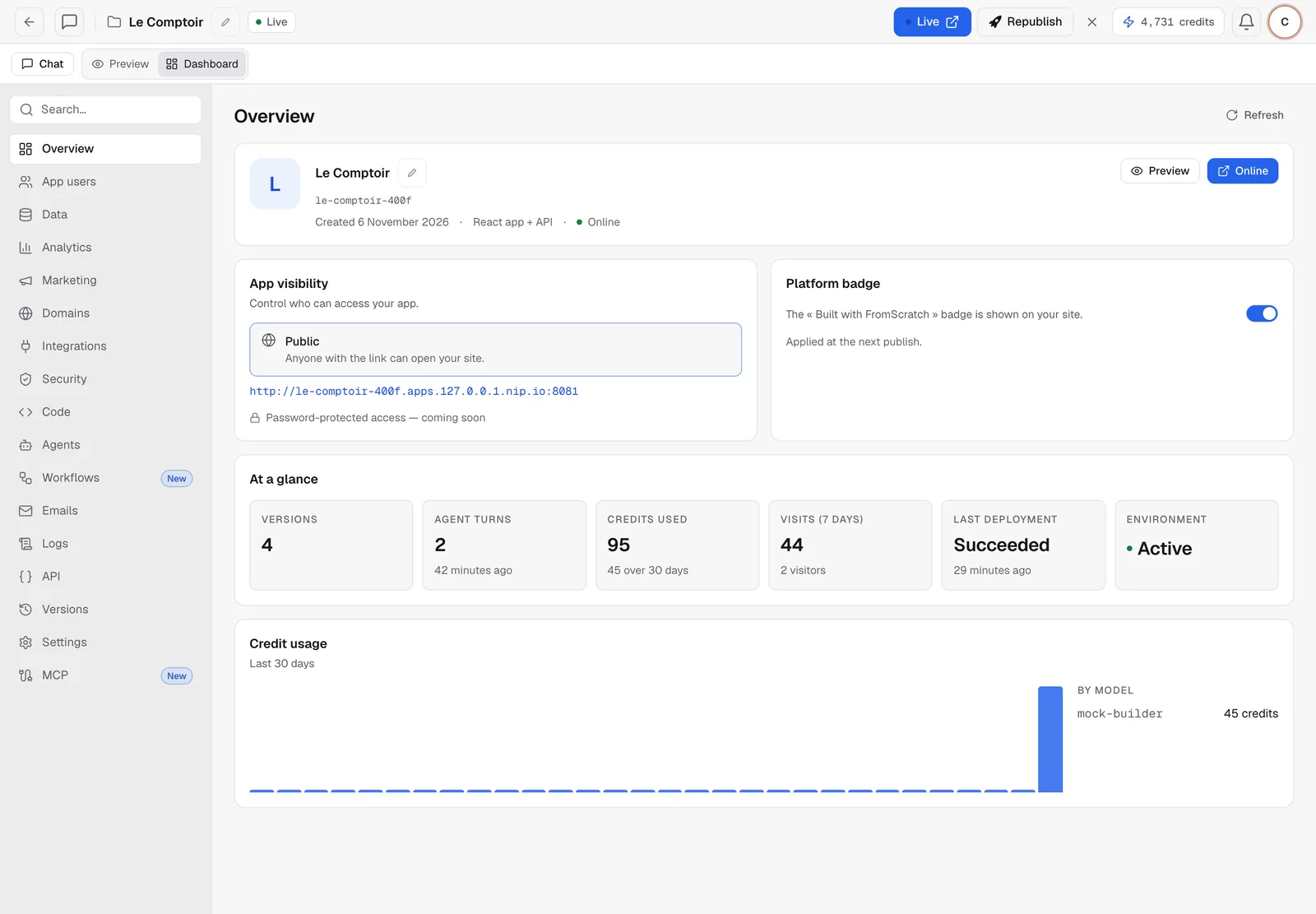
The Overview
This is the first section. It answers the question "where does my site stand?":
- the project card: its name (editable with the pencil), its address, its creation date, its type (React + API app or store) and its status (Preview only or Live), with the Preview and Live buttons;
- App visibility: who can open the site. Until it's published, only you can see the preview;
- Platform badge: the small "Created with FromScratch" line at the bottom of your pages, see The badge and the showcase;
- At a glance: the number of versions, conversations with the agent, credits used, visits over the last 7 days, the last deployment and the state of the workspace;
- Credit usage: the credits used over the last 30 days, day by day and by model.
The sections at a glance
| Section | What it's for |
|---|---|
| App users | The accounts and sign-ups on your site: search, export, block, delete. See App users and data |
| Data | The tables of your app's database, read-only, with CSV export |
| Analytics | Visits to the published site, and your Google Analytics reports. See Site visit statistics |
| Marketing | SEO settings, site analysis, speed, Search Console and rankings, video ads and newsletter. See SEO settings and site check |
| Domains | The FromScratch address and your own domain name. See Use your own domain |
| Integrations | Google Analytics, Meta and TikTok pixels, Google account, Stripe, email services and more. See Connect services |
| Security | Environment variables, project secrets, access to the store admin. See Variables and secrets |
| Code | Browse and edit files, export, push to GitHub. See Code and GitHub |
| Agents | The project's model, the agent's skills and autonomous agents. See Agent skills |
| Workflows | The current plan, the conversation history and automations. See Automations |
| Emails | The log of emails sent by your site. See Email log |
| Logs | The logs of the preview and of the published site. See Logs and your app's API |
| API | Your app's routes and its API keys |
| Versions | The history, with Go back here. See Versions: undo anything |
| Settings | Name, address, folder, light or dark mode, publishing, published-site settings, deletion |
| MCP | Connect outside tools to the agent, or expose your app to AI assistants. See MCP: connect tools |
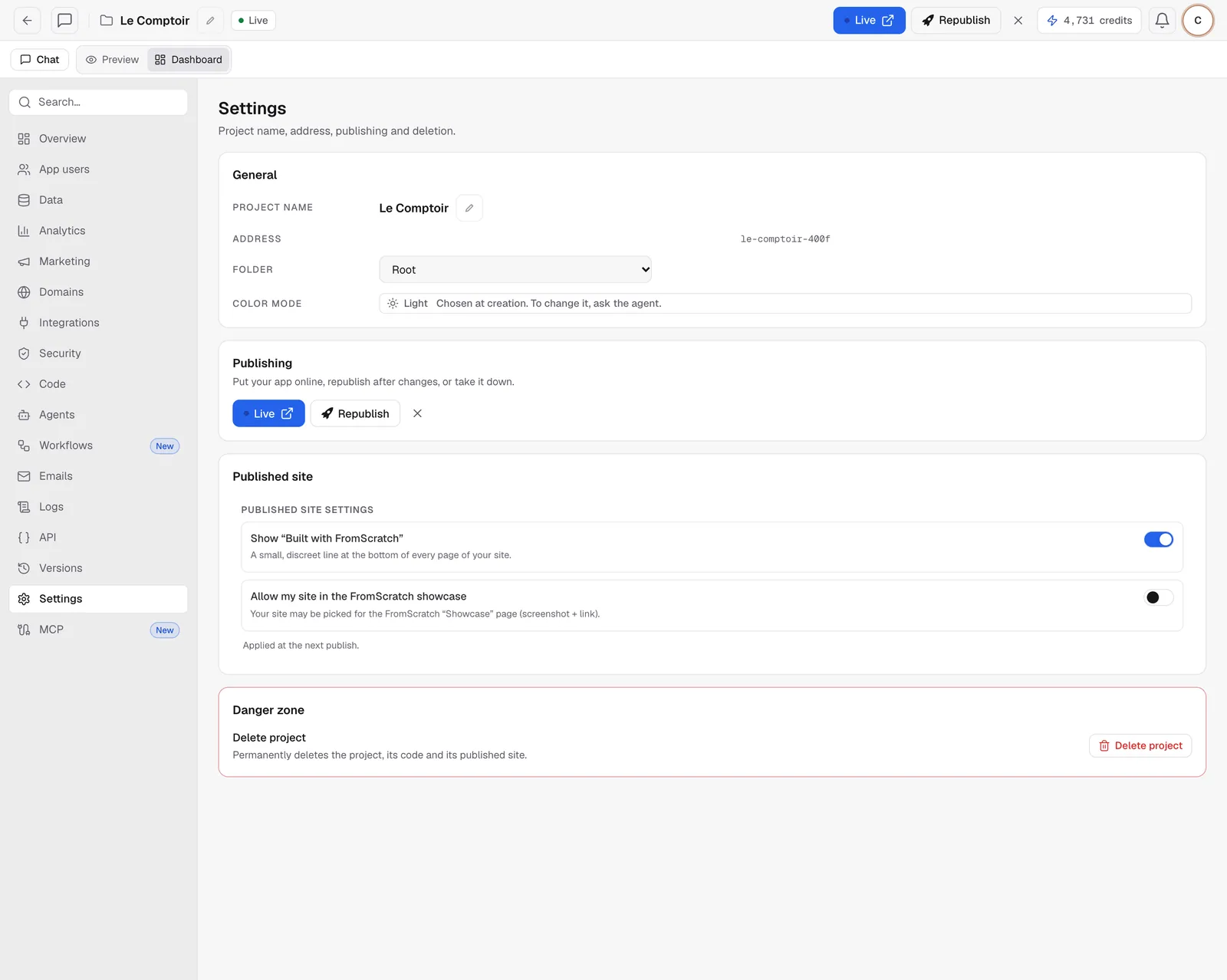
Project settings
In Settings, you can:
- rename the project with the pencil next to Project name;
- file it in a Folder of My projects;
- see its Color mode, chosen when you created it (to change it, ask the agent);
- publish, Republish, or take the site offline (the cross to the right of Republish);
- adjust the badge and the showcase of the published site;
- delete the project in the Danger zone. Deleting removes the code, the preview and the published site. It can't be undone.
Tip
buttons that cost credits say so. Most dashboard actions (SEO settings, integrations, export, keys) use no credits: they write straight to your files or your configuration.
FAQ
Is the dashboard available on the free plan?
Yes, it's open on every project. Some actions depend on your plan: publishing, a custom domain, export and the code browser are limited to the Starter and Pro plans.
A section says it's asleep. What should I do?
Some sections read from the preview's workspace (data, logs, API routes). If it has gone to sleep, click Open preview. It restarts in about a minute, and then the section fills in.
Related
Was this page helpful?
Thanks for your feedback!
Couldn't send your feedback. Please try again later.