Try your app on your phone with Expo Go
Scan the « On my phone » QR code with Expo Go to run your app on a real iPhone or Android phone, with the camera, notifications and live reload.
On this page
The preview in FromScratch shows the web version of your mobile app. To hold the real thing in your hand, open it on your own phone with Expo Go, a free app made by Expo. Nothing to build, nothing to install from FromScratch: you scan a QR code and your app starts on the phone, and it reloads by itself each time the agent changes something.
Before you start: install Expo Go
Install Expo Go on your phone, from the App Store (iPhone) or Google Play (Android). The On my phone window has a link to each store under « Get Expo Go ». On Android, no account is needed. On iPhone, Expo Go only opens apps from a signed-in Expo account (free):
- Connect your Expo account to the project in Dashboard › Mobile (see Connect your Expo account). FromScratch then links the app to Expo by itself (« EAS project » on the same page) and the preview restarts once, about 30 seconds.
- In Expo Go on the iPhone, tap the profile icon at the top right and sign in with the same Expo account.
Open your app on the phone
- Open your project in FromScratch, with the preview showing your app.
- Click On my phone in the bar above the preview. The « Test on your phone » window opens with a QR code.
- Scan the code:
- iPhone: with the Camera app (Expo Go on iPhone has no scanner), then tap the banner that appears.
- Android: from the Expo Go app, with its « Scan QR code » button.
- Expo Go downloads your app and opens it. The first opening takes a little longer; the next ones are faster.
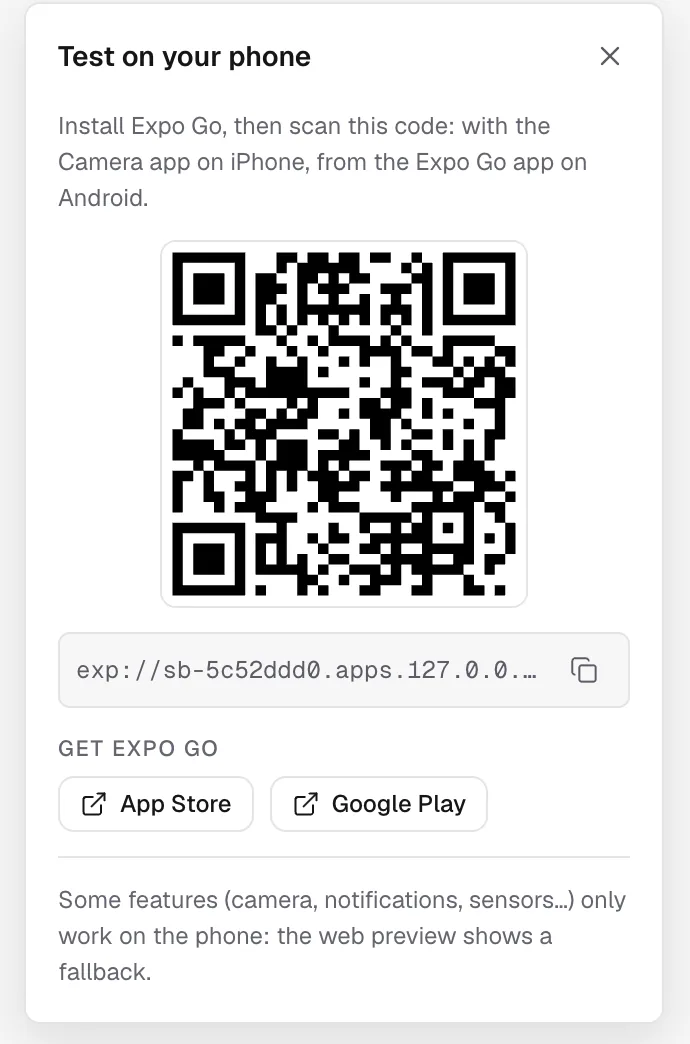
No QR code yet? The window says « The preview is starting… »: wait until the preview shows your app, the code then appears on its own. The copy button next to the address (« Copy link ») copies the same link, handy to send it to your phone by message.
While you keep chatting
Leave the app open on your phone and keep talking to the agent. Each time it changes a screen, the app on the phone reloads within a few seconds, like the preview. If it stops updating, shake the phone to open Expo Go's menu and choose « Reload ».
Your phone does not need to be on the same Wi-Fi network as your computer: it reaches your project's preview over the internet.
Web preview or phone: what differs
The preview in FromScratch and Expo Go run the same code, but a browser can't do everything a phone does.
| Feature | Preview (web) | Phone (Expo Go) |
|---|---|---|
| Screens, navigation, texts, images, lists, forms | Yes | Yes |
| Location, photo picker | Yes, with the browser's permission | Yes |
| Camera | A message asks you to use your phone | Yes |
| Notifications, sensors, vibrations | Limited or absent | Yes |
| Look and feel (fonts, safe areas, keyboard) | Close | The real one |
When a feature only works on the phone, the agent shows a short card in the preview instead of a blank screen, and tells you to try it with On my phone.
Tip
test on both an iPhone and an Android phone if you can. Most apps look the same on both, but small details (the keyboard, the back button, the top bar) differ.
Expo Go and Expo versions
Expo Go from the stores only opens apps made with the latest Expo version. Your project starts on that version. When Expo releases a new one, Expo Go updates on your phone and may refuse to open an older project with a message about the « SDK ». In that case, ask the agent:
Expo Go says my project's SDK is not supported. Upgrade the project to the latest Expo version and check that everything still works.The web preview and the builds made from the dashboard keep working in the meantime.
FAQ
Do people who test my app need FromScratch?
No, but Expo Go only opens your app while your project's preview is running. To let others try the app for days, send them an installable build instead: see Build your app for Android and iPhone.
On iPhone, Expo Go says « Try again » or asks to run npx expo login.
npx expo login.The project isn't linked to your Expo account yet, or Expo Go is signed in to another account. Connect your Expo account in Dashboard › Mobile (and click « Link to EAS » if the « EAS project » line is still empty), sign in to Expo Go with the same account, wait for the preview to show your app again, then scan again. You never need to type a command: FromScratch signs the preview in for you.
The QR code doesn't open anything.
Check that Expo Go is installed and up to date, and that your workspace isn't asleep: open the project in FromScratch, wait for the preview to show your app, then scan again.
Related
Was this page helpful?
Thanks for your feedback!
Couldn't send your feedback. Please try again later.