Web radio app: connect your stream
Plug your own Icecast, Shoutcast or HLS stream into the Ondalune radio app from the Radio stream card, test it, then update the installed app.
On this page
The Ondalune design is a complete radio app: a live player with an HD stream and a data-saver stream, the title on air, the weekly programme, replays and podcasts, favourites and a sleep timer. It starts on a demo stream. The Radio stream card plugs in your own station, without touching the code and without credits.
Where the card is
- Dashboard › Integrations › Services: the Radio stream card. It only exists for mobile (Expo) apps.
- Dashboard › Mobile: the same card shows there too once a stream is set.
To start such an app, pick Ondalune in the « Mobile apps » row of the Home page (see Create a mobile app).
Connect your stream
- In the card, switch from Demo stream to Your stream.
- Pick the Server type: Icecast (most common), Shoutcast v2, Shoutcast v1 (legacy), Direct MP3 / AAC link or HLS (.m3u8). The hint under the list shows what the address looks like for that type.
- Paste the Stream address, the one your radio host gives for listeners (for Icecast, the mount point, for example
https://radio.example.com:8000/live). - Optional: a Low-quality stream (data saver) that listeners can switch to on a weak connection, and the Station name.
- Leave Now-playing address empty: it is deduced from the server type. Fill it only if the titles come from elsewhere (an AzuraCast or Radio.co API, a status page on another server).
- Click Test, then Save.
What the test tells you
Test asks your server from FromScratch and shows:
- « The stream answers and plays audio. », with its format, its bit rate in kbit/s and the name the server announces;
- the title on air right now, or a note that the app will show the current show of the programme instead;
- whether the low-quality stream answers too.
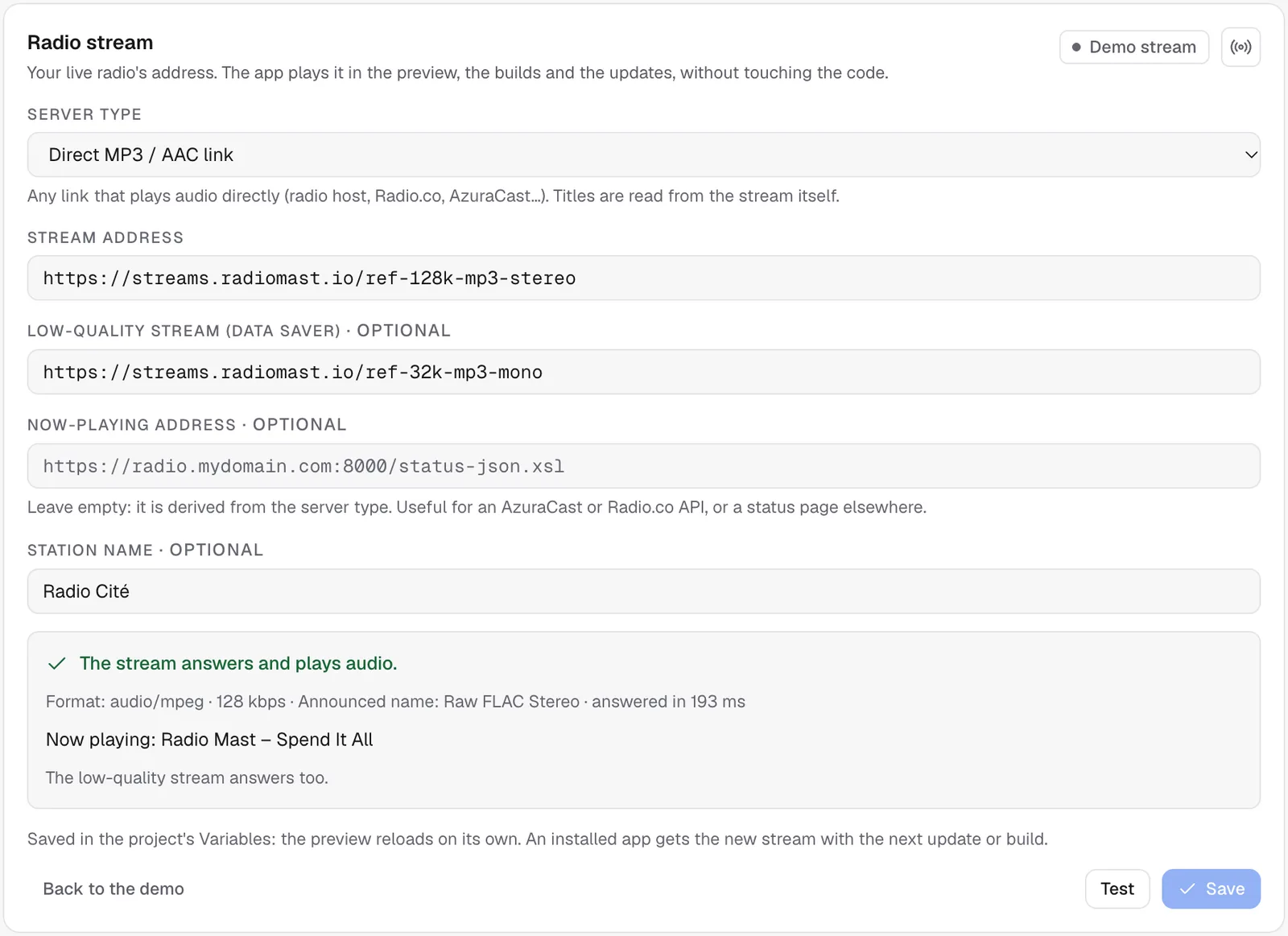
When the address is wrong, the card says why in plain words: a web page instead of audio, a playlist file (.pls, .m3u) instead of the stream, a private address, a server that doesn't answer. When the test finds the real stream behind your address, Use this address fills it in for you.
An address that starts with http:// works in the installed app, but a web browser blocks it, so the web preview stays silent: ask your host for the https:// address.
What saving does
The addresses are saved in the project's Variables. The preview reloads by itself and plays your stream. An app already installed on phones gets the new stream with the next update or the next build (see Update without the stores).
Back to the demo removes your addresses and plays the demo stream again. Wire it with the agent opens the chat with a ready-made request, if you want the agent to check the screens use your station well.
Frequently asked questions
Does the radio keep playing when the phone is locked?
Yes in an installed app (a build): the lock screen shows the player. Expo Go and the web preview stop when you leave them.
Can I change the programme, the replays or the colours?
Yes: describe the change to the agent in the chat, or use « Modifier » on the preview for texts and pictures.
Was this page helpful?
Thanks for your feedback!
Couldn't send your feedback. Please try again later.