Publish your app on Google Play
Follow the 8 checked steps of « Publish to the stores »: developer account, Play Console access, production build, first upload, listing and release.
On this page
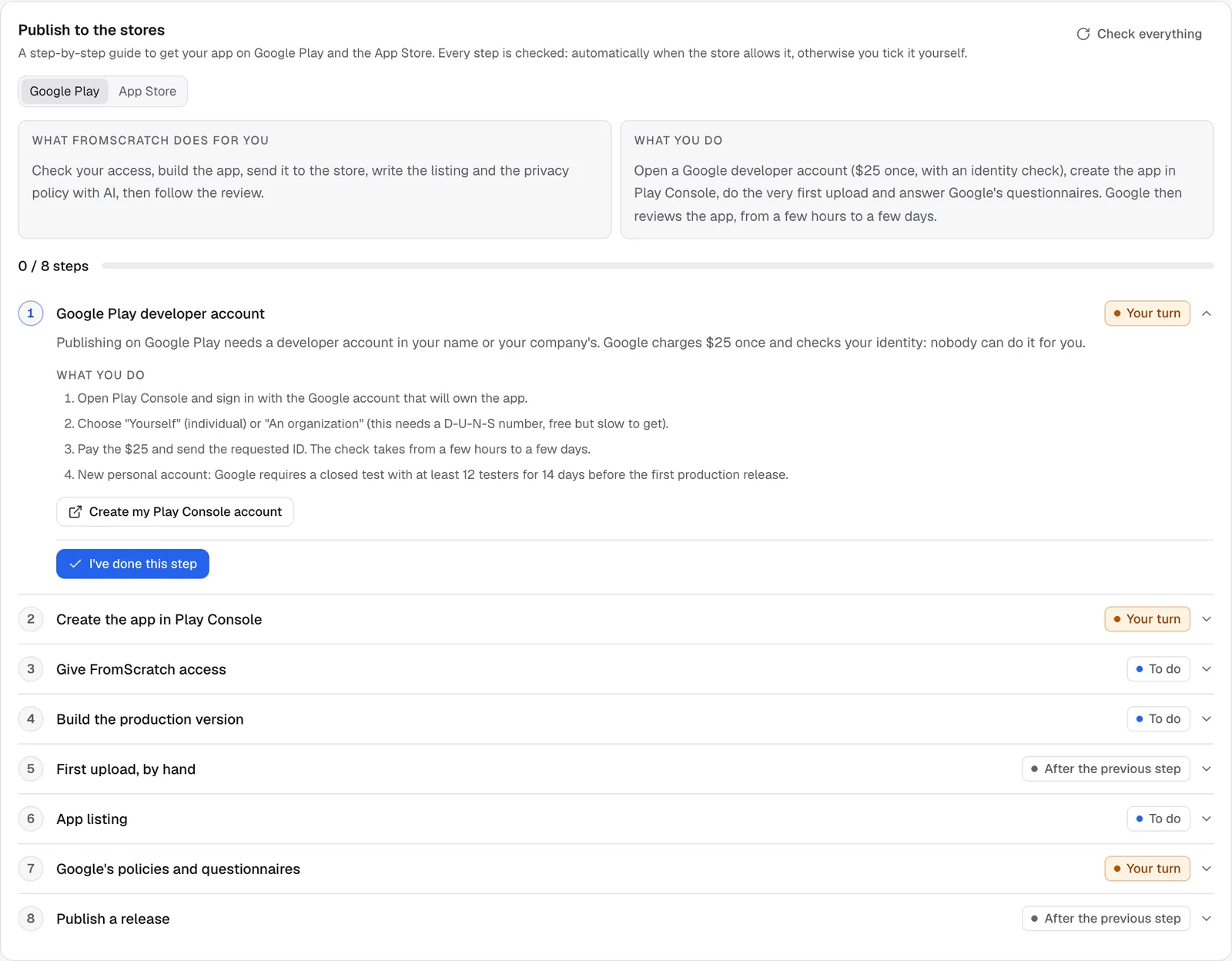
The Publish to the stores card of Dashboard › Mobile walks you through getting your app on Google Play, in eight steps. Each step says what to do and why. FromScratch checks a step automatically when Google lets it see the result; for the others, you tick it yourself once done. This page goes through the Google Play tab.
How the steps work
Each step shows a status: Done, To do, Your turn (a step only you can do), After the previous step or Problem. The first step that isn't done is open; click any other step to read it.
- Check re-runs the automatic check of a step; Check everything re-checks them all.
- I've done this step ticks a step you did in Google's console; Not done yet unticks it.
- On a step with a problem, Explain with AI gives « What's going on » in plain words and « What to do now ». It never sees your keys.
Store publishing is part of the Starter and Pro plans. You also need to have connected your Expo account and linked the app to EAS.
1. Google Play developer account
Google asks for a developer account in your name or your company's: $25 once, with an identity check that takes from a few hours to a few days. Create my Play Console account opens Google's sign-up. Choose « Yourself » or « An organization » (which needs a D-U-N-S number, free but slow to get).
Warning
on a new personal account, Google requires a closed test with at least 12 testers for 14 days before your first production release. Plan for it: invite friends, colleagues or customers as testers early.
2. Create the app in Play Console
Google doesn't let apps be created by software: in Play Console, click « Create app », paste the App name shown in the step, pick the default language, « App » and « Free ». The step confirms itself as soon as FromScratch's access (next step) can see the app.
3. Give FromScratch access
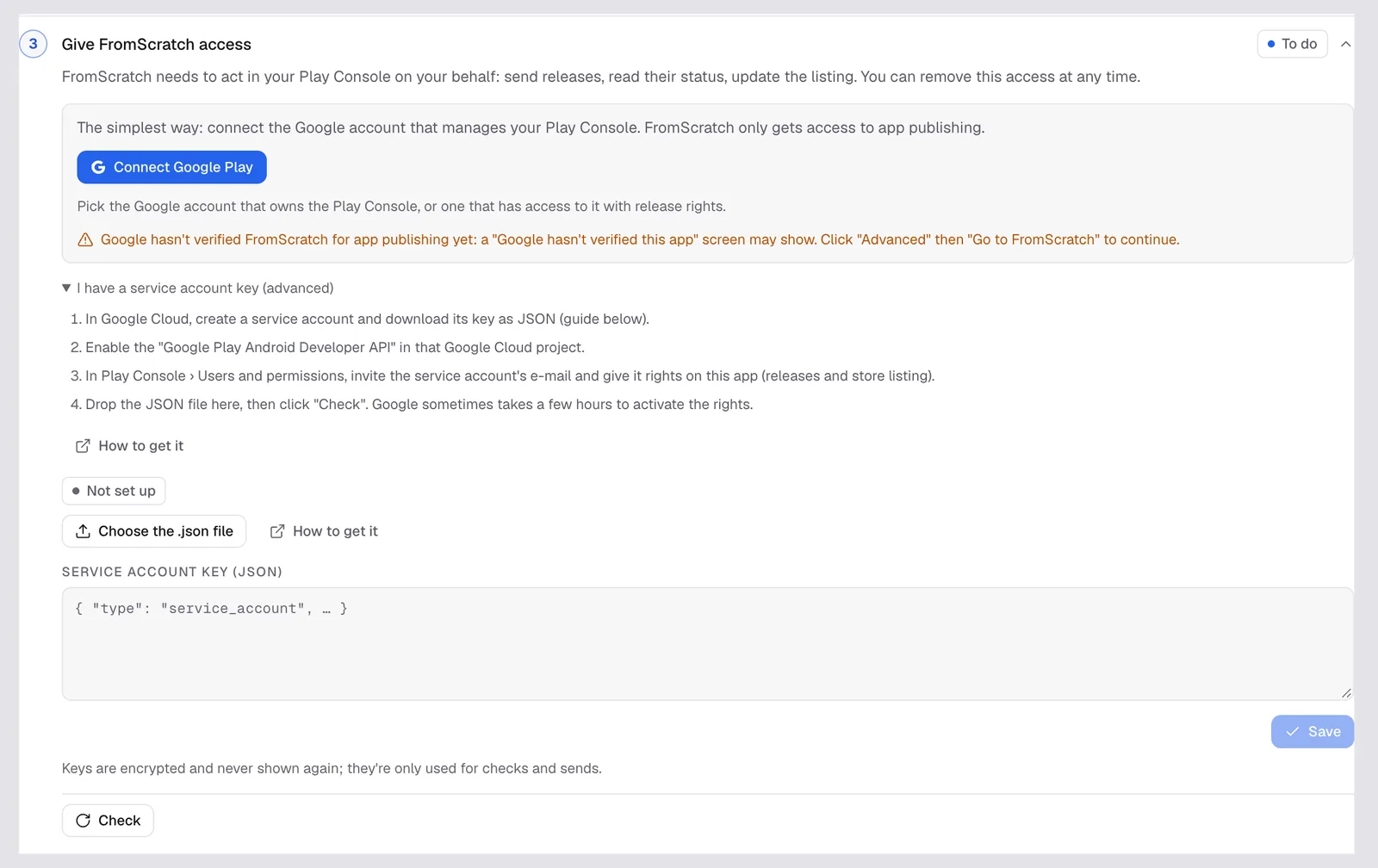
FromScratch needs to act in your Play Console for you: send releases, read their status, update the listing. Two ways:
- Connect Google Play (the simplest): sign in with the Google account that owns your Play Console, or one that has release rights on it. FromScratch only gets access to app publishing.
- I have a service account key (advanced): for agencies or teams that prefer a technical account. Create a service account in Google Cloud, enable the « Google Play Android Developer API », invite the service account's e-mail in Play Console › Users and permissions, then drop its JSON key in the step and click Check.
Note
Google hasn't finished verifying FromScratch for app publishing yet, so a « Google hasn't verified this app » screen may show when you connect. Click « Advanced », then « Go to FromScratch » to continue. You can remove the access at any time from your Google account.
4. Build the production version
Google Play asks for a signed AAB file. Start the production build launches it on your Expo account (10 to 20 minutes). The step is confirmed when the build is finished. See Build your app for Android and iPhone.
5. First upload, by hand
Google requires the very first version to be uploaded by hand. Click Download the AAB, then in Play Console: your app › Test and release › Testing › Internal testing › « Create new release ». Accept Play App Signing if offered, drop the file, save and start the rollout to internal testing. Come back and click Check. The next versions go straight from FromScratch.
6. App listing
The title, descriptions and privacy policy shown on Google Play. AI drafts them, you review and send them: see Store listing and privacy policy.
7. Google's policies and questionnaires
No tool can answer these for you. In Play Console › Policy and programs › App content: privacy policy (paste the URL shown in the step, a page hosted by FromScratch), app access (a test account if the app needs a login), ads, content rating, target audience and Data safety. Then pick the category and contact e-mail in Store settings, and tick the step.
8. Publish a release
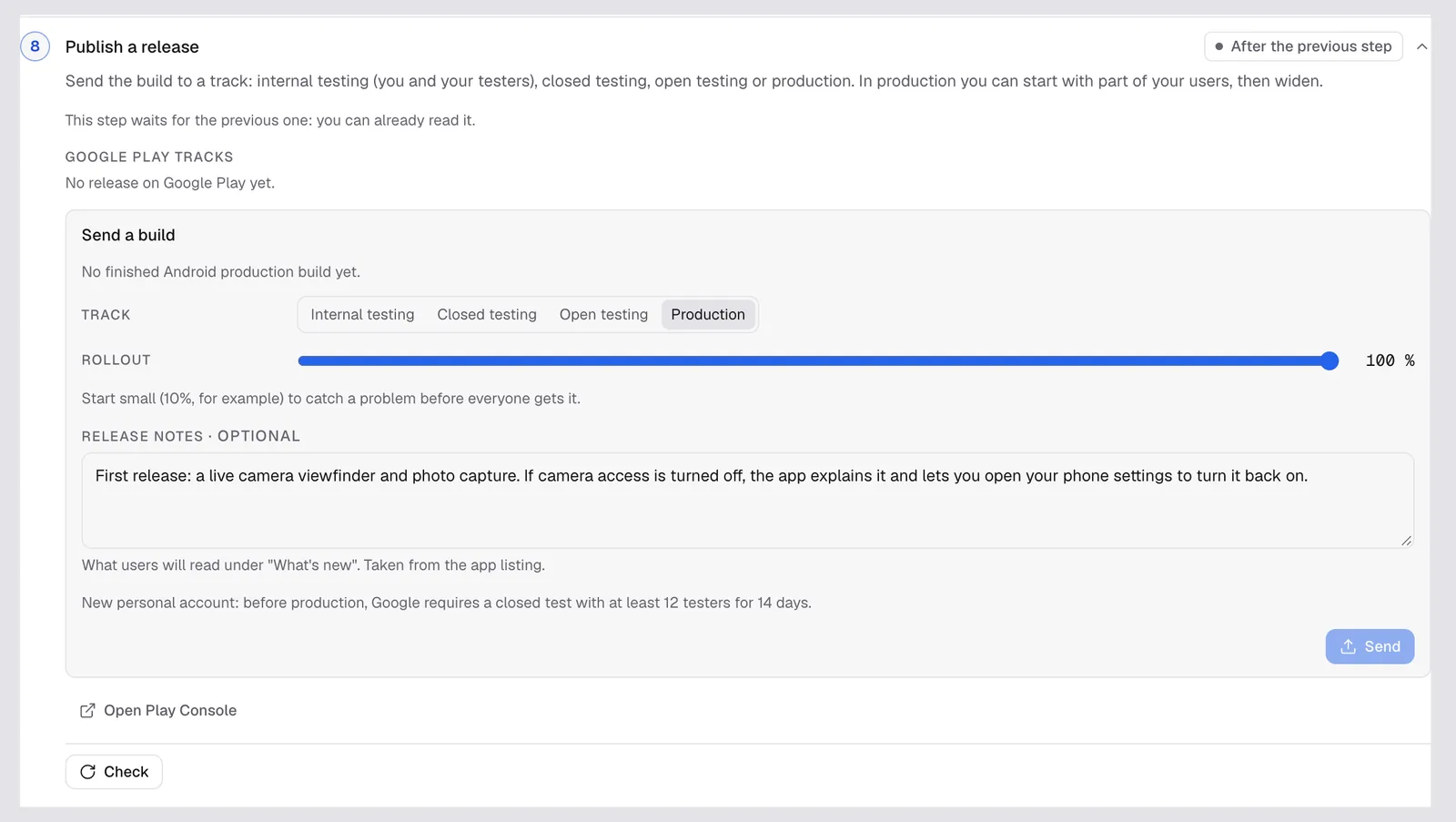
- Pick the Track: Internal testing (you and your testers), Closed testing, Open testing or Production.
- For production, set the Rollout: start small (10 %, for example) to catch a problem before everyone gets it.
- Write the Release notes (« What's new », 500 characters per language on Google Play), taken from your listing by default.
- Click Send and confirm. FromScratch downloads the build, uploads it and creates the release (a few minutes).
Under Google Play tracks, each track shows its status (Live, Staged rollout, Halted, Draft) and percentage. Promote to production moves a tested release to production; Change the rollout widens a staged rollout. If your app has never been published on Google Play, Google may keep the release as a Draft: finish it in Play Console. Google then reviews it, from a few hours to a few days.
Related
Was this page helpful?
Thanks for your feedback!
Couldn't send your feedback. Please try again later.