Tracking and pixels: Google Analytics, Meta and TikTok
Add Google Analytics 4, the Meta Pixel or the TikTok Pixel to your published site by pasting an ID, with no code to touch and no credits to pay.
On this page
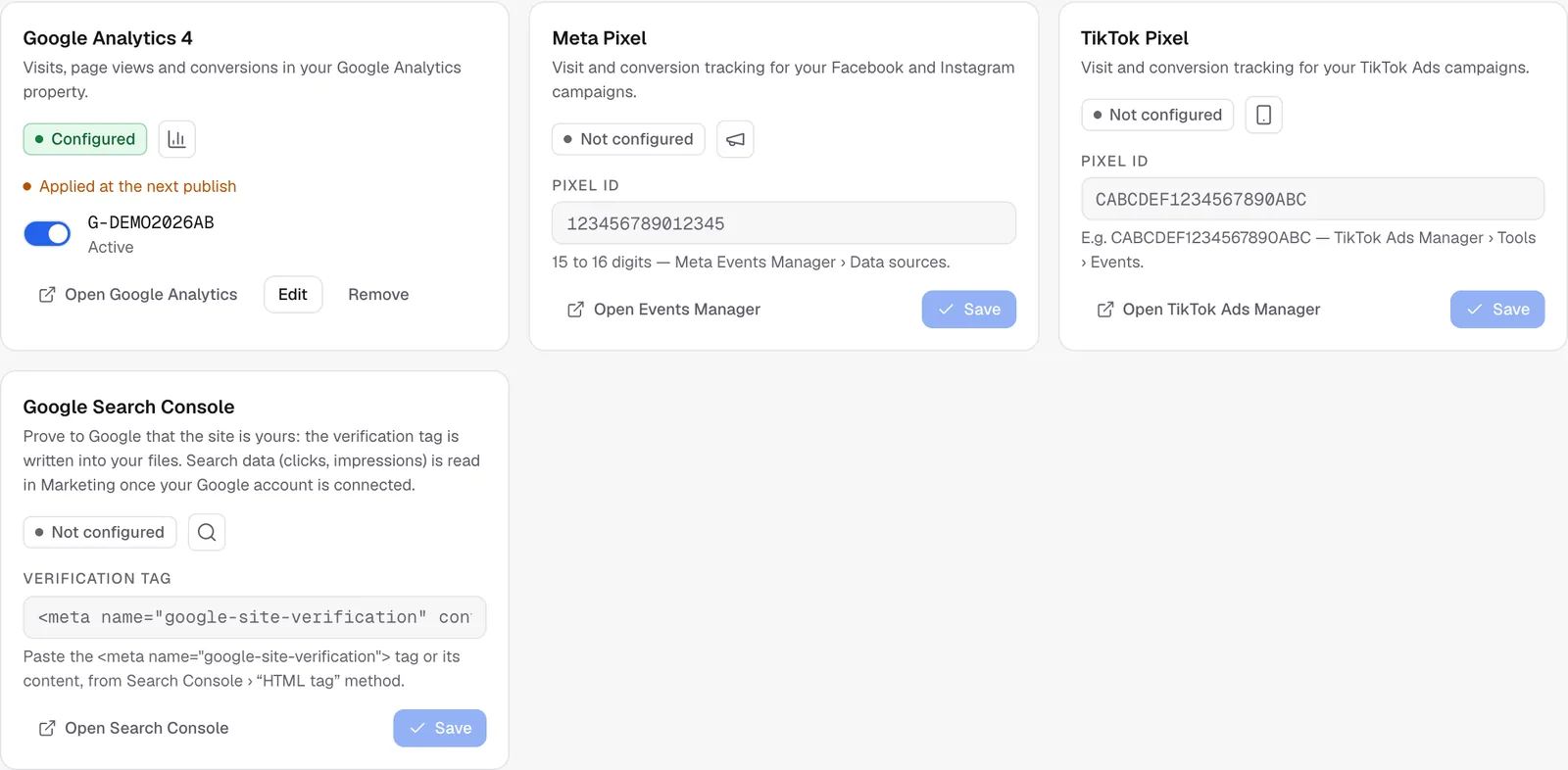
Do you advertise on Facebook, Instagram or TikTok, or already follow your audience in Google Analytics? Just paste each tool's ID into Dashboard › Integrations: FromScratch adds the tracking code to every page of the published site. Your site's code isn't changed, and the preview is never affected.
Add a tracking tool
- Open Dashboard › Integrations, Audience measurement & marketing group.
- In the tool's card, paste its ID:
- Google Analytics 4: the Measurement ID, which starts with
G-(Google Analytics › Admin › Data streams); - Meta Pixel: the Pixel ID, 15 or 16 digits (Meta Events Manager › Data sources);
- TikTok Pixel: the Pixel ID, letters and digits (TikTok Ads Manager › Tools › Events).
- Google Analytics 4: the Measurement ID, which starts with
- Click Save. The card switches to Configured and shows Applied at the next publish.
- Click Republish (at the top of the group) to update the site.
Tip
you can paste the full snippet that Google, Meta or TikTok gives you. FromScratch finds the ID in it on its own.
To pause a tool without losing its ID, use the card's switch. Edit changes the ID and Remove takes it off. In every case, republish so the live site follows.
Create the Google Analytics property for this site
Don't have a GA4 property yet? FromScratch can create it in your Google Analytics account.
- Open Dashboard › Analytics, Google Analytics card.
- Click Create the GA4 property for this site. If your Google account isn't connected with this permission yet, Google asks you to allow creating properties.
- If you have several Google Analytics accounts, choose the one that should hold it, along with the time zone and the currency.
- FromScratch creates the property and its web data stream, then saves the Measurement ID in Integrations.
- Click Republish.
You must already have an account on analytics.google.com. FromScratch creates a property, not an account.
Why "at the next publish"?
The tracking code is added when the site is served, not in your files. The live site therefore keeps its configuration until the next publish. The card reminds you when a change is still waiting to be published.
Respect consent
Google Analytics, Meta and TikTok set cookies. In Europe, your visitors must be able to accept or refuse them. Ask the agent to add a suitable consent banner:
Add a cookie consent banner with "Accept" and "Decline" buttons, and only load Google Analytics and the Meta pixel after the visitor agrees.FromScratch's built-in counter uses no cookies: it works even if the visitor declines (see Site visit statistics).
FAQ
The code doesn't show up on my site.
Check that the card is active and that you've republished. If you asked the agent for a custom deployment file, the automatic addition is turned off: ask it to insert the code itself.
Do I also need to connect my Google account?
Not to track visits: the Measurement ID is enough. Yes to read your GA4 reports in the dashboard or to create a property.
Related
Was this page helpful?
Thanks for your feedback!
Couldn't send your feedback. Please try again later.