Automations: scheduled tasks and alerts
Call your app on a schedule, get an email if the site goes down, or notify another service after each publish, without using any credits.
An automation is a small task that FromScratch runs for you, on a schedule or when something happens: call a route of your app every night, email you if the site stops responding, notify Zapier after each publish. It runs without the agent: no credits used, and the preview is never woken up.
Create an automation
- Open Dashboard › Workflows, Automations card.
- Click New automation (or one of the suggestions: Call my app every hour, Alert me if the site goes down, Webhook after each publish).
- Choose the Action (see below) and give it a Name.
- Choose When:
- Schedule: a precise time (Every hour, Every day at 8:00, Weekdays at 8:00, Mondays at 9:00, 1st of the month, or your own cron expression);
- Interval: every N minutes;
- Event: After each publish or When the published site goes down.
- Check the Next runs shown under the schedule, then click Save. Send now runs a test right away.
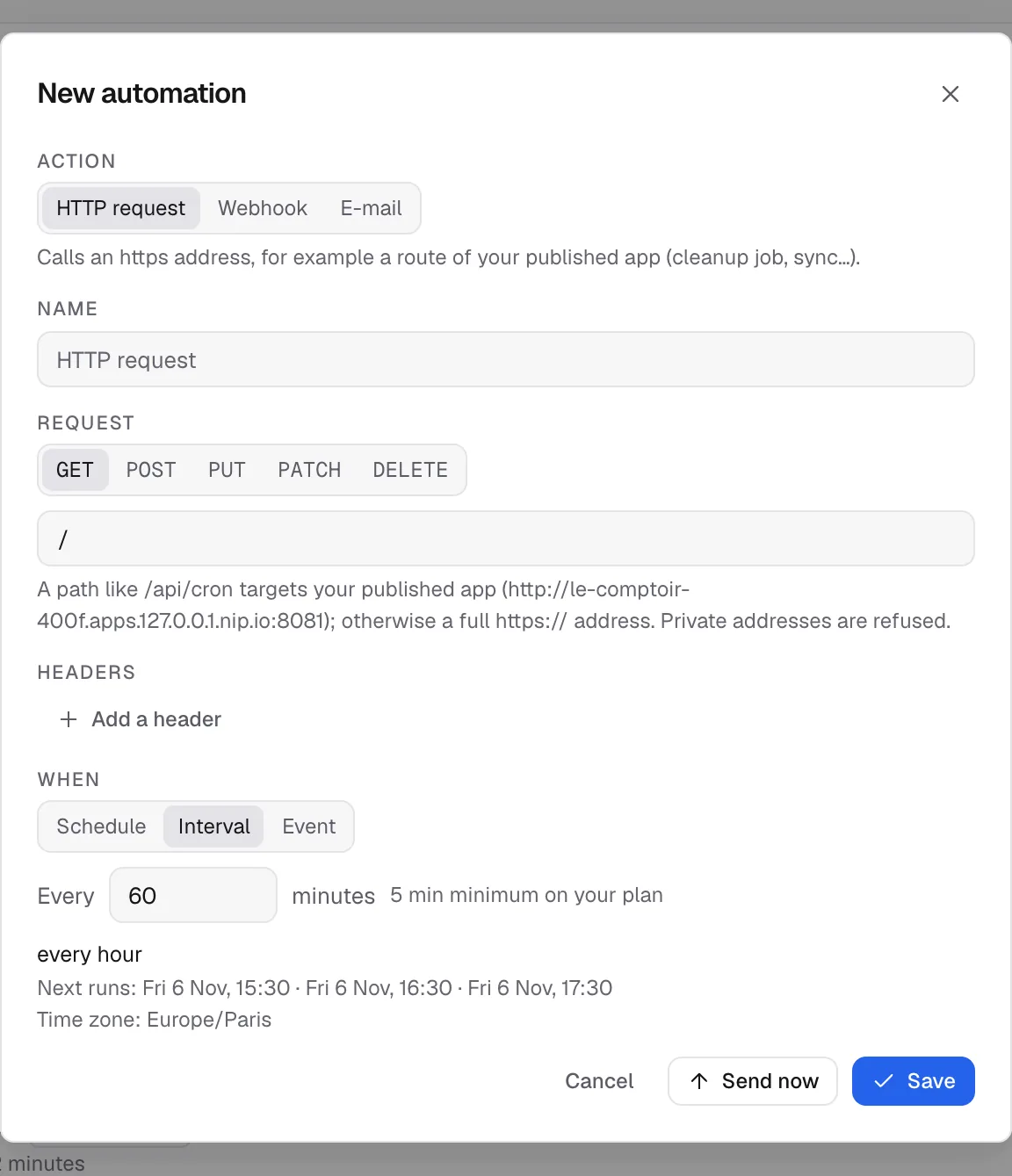
Times follow your time zone, shown under the schedule.
The three actions
| Action | What it does | Example |
|---|---|---|
| HTTP request | Calls an address. A path like /api/cron targets your published app. Otherwise use a full https:// address |
Clear past bookings every night |
| Webhook | Sends a signed JSON POST to another service |
Notify Zapier, Make or n8n after each publish |
| Sends you an email (to the project owner) | "My site isn't responding" |
For an email, the Subject and Message accept variables: {project}, {url}, {event} and {date}.
For a webhook, a Signing secret is generated when you save. Every call carries the X-FromScratch-Signature header, so your service can check that the call really comes from FromScratch. Give this secret to the developer who receives the webhook.
Note
private or internal addresses are refused, and a request to your app only works once the site is published.
Follow the runs

Each row shows its schedule and its next run. The buttons on the right:
- History: the latest runs, with their status (succeeded, failed, skipped) and a summary (response code, error);
- Run: starts the task right now;
- the pencil edits it, the trash can deletes it;
- the switch pauses the task without deleting it.
Limits
- 10 automations per project, scheduled agents included.
- Minimum interval: 15 minutes on the free plan, 5 minutes on paid plans.
- The When the published site goes down event relies on the platform's monitoring, which checks your site every minute.
FAQ
My automation failed.
Open History. The summary gives the response code. A 404 means the route doesn't exist in your published app. Ask the agent to create it, then republish.
Can I give a more complex task to the AI?
Yes, with a scheduled agent. It works on its own on a schedule, but it uses credits. See Autonomous agents.
Related
Was this page helpful?
Thanks for your feedback!
Couldn't send your feedback. Please try again later.