Security: your project's variables and secrets
Manage your app's environment variables, track how old your keys are, regenerate a secret in one click and get a reminder every 90 days.
On this page
The Security section of the dashboard gathers everything in your project that must stay private: environment variables (API keys, service passwords), secrets tracked by age, access to a store's admin, and the reminder about sharing your project.
Environment variables
An environment variable is a value your app reads when it starts, without it being written in the code. Think of a Stripe key, an SMTP password or an API address.
- Open Dashboard › Security.
- In Environment variables, click Add.
- Enter the name (in capitals, for example
OPENAI_API_KEY) and the value. Values are hidden. The eye icon shows them. - Click Save.
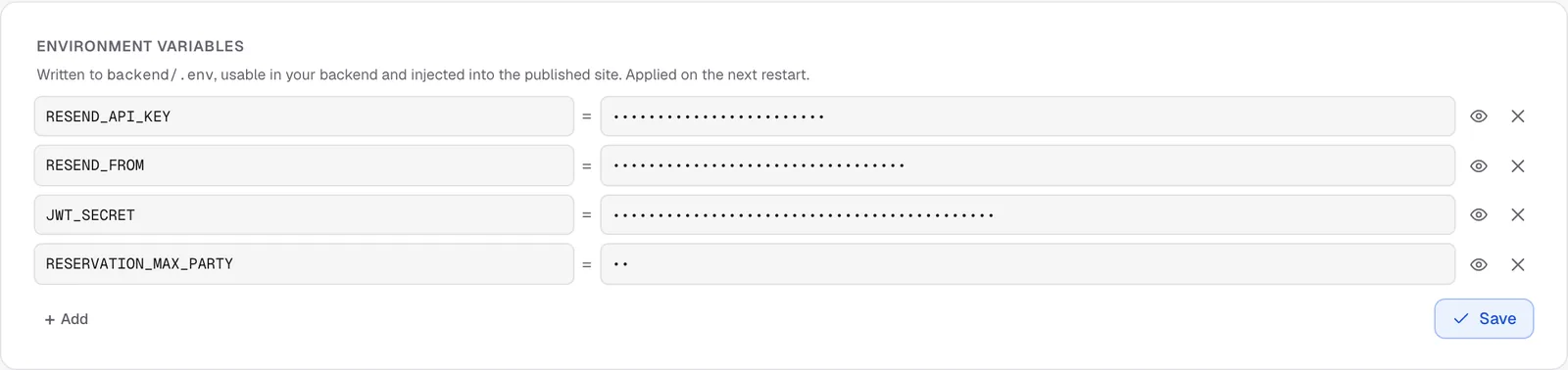
Variables are written to the preview's backend/.env file and sent to the published site. If your site is live, it restarts by itself with the new values. The names you're likely to need (Stripe, Shopify, SMTP…) are listed in Environment variables.
Tip
for a common service (Resend, Supabase, S3, OpenAI…), use Integrations instead. The card checks the format of your keys and gets the agent ready. See Connect services.
Project secrets
The Project secrets card lists the secrets found in your project and how old they are. Values are never displayed.
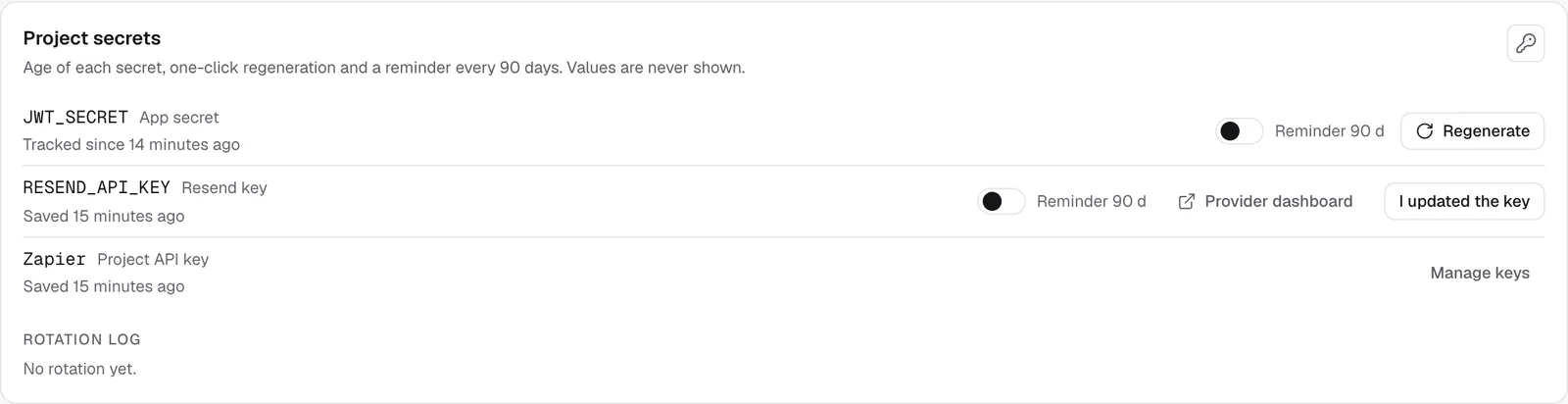
The available actions depend on the type of secret:
| Secret | Examples | Action offered |
|---|---|---|
| App secret | JWT_SECRET, SECRET_KEY, COOKIE_SECRET |
Regenerate: a new random value is created and the published site restarts |
| Service key | RESEND_API_KEY, a Stripe key, an S3 key |
Provider dashboard to create a new key there, then I updated the key to paste the new one |
| Project API key | the keys you created in API | Manage keys opens the API section |
| Store admin password | a published store | Regenerate a new password for the live admin |
Warning
regenerating
JWT_SECRETorSECRET_KEYsigns out everyone who's logged in to your app. They'll have to sign in again. Do it at a quiet time.
The 90-day reminder
Turn on Reminder 90 d for a secret. Seven days before it turns 90 days old, you get an email asking you to renew it. For app secrets, you can also turn on automatic rotation: the value is then regenerated by itself at 90 days. Every rotation is recorded in the Rotation log.
The store admin
For a store, the Security section also shows the Store admin card, with Open admin and the Credentials (email and password), each with a button to copy it. See The store admin.
Collaborators
You share a project from My projects on the home page. The project menu offers Share the project, as Editor (chats with the agent, builds, publishes) or Viewer (can only look). An editor can see the project's variables, so only give that role to people you trust.
FAQ
Can I see the value of a secret?
In Environment variables, yes, with the eye icon. In Project secrets, no. That card only shows the age and status.
I pasted a key in the chat by mistake.
Treat it as exposed. Create a new one at the provider, paste it in the service card, then delete the old one at the provider.
Related
Was this page helpful?
Thanks for your feedback!
Couldn't send your feedback. Please try again later.