App users and data
See the sign-ups and tables of your app, export them as CSV, and block or delete an account, without writing a single line of SQL.
As soon as your site saves something (a sign-up, a booking, an order, a message), that information goes into its database. The App users and Data sections of the dashboard show it to you, with no technical tools and no credits.
Preview or published site: two different databases
Your project has two databases:
- the preview one, where you and the agent run your tests;
- the published site one, where your real visitors land. It's kept from one publish to the next (see Published site data).
At the top right of both sections, the Preview | Published site switch chooses which database is shown. A banner always reminds you which one you're working on.
App users
FromScratch finds your accounts table on its own: a table with an email column (users, customers, members…). If your app has several, a menu lets you choose.
- Open Dashboard › App users.
- Choose Preview or Published site.
- Look someone up with Search by e-mail or name, or sort by clicking a column title.
- Click … at the end of a row to act on that account.
- Export (CSV) downloads the full list, for a spreadsheet or an email tool.
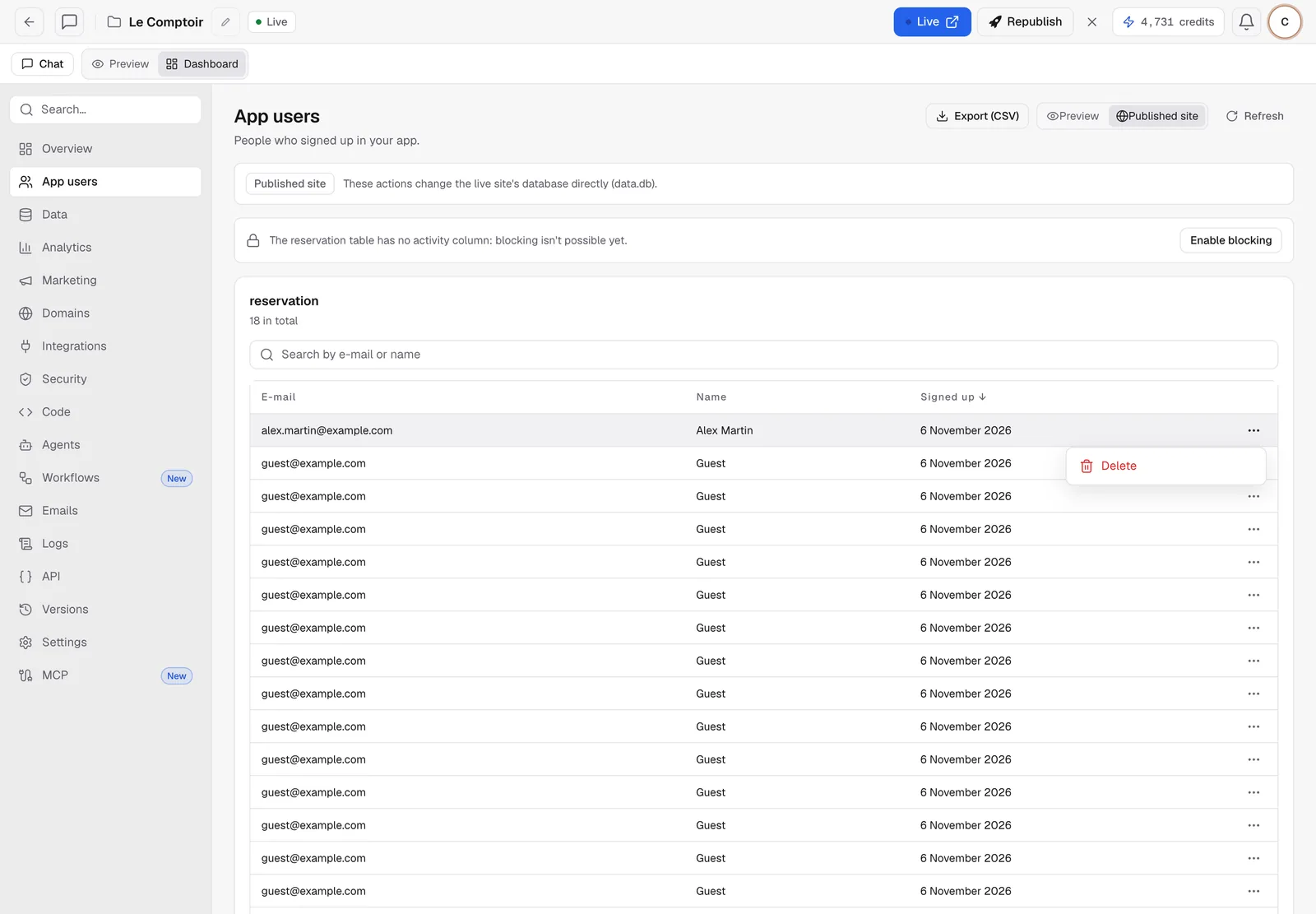
The available actions depend on what your table contains:
| Action | When it appears |
|---|---|
| Block / Unblock | The table has an activity column (is_active, blocked…). If not, Enable blocking adds a column made for it, and the agent is told so the app takes it into account |
| Reset password | The table holds an encrypted password in a known format. A new password is generated and shown only once |
| Delete | Always, after confirmation |
| Invite | On the published site: sends an invitation by email (20 per hour at most) |
Warning
on Published site, actions change the live database directly. A deletion can't be undone. Export to CSV first if you have any doubt.
Data
The Data section shows all the tables of your app, read-only.
- Open Dashboard › Data.
- Choose Preview or Published site.
- Click a table in the Tables column. Its content appears on the right (the first 200 rows).
- Export the table as CSV with the button provided (up to 50,000 rows).
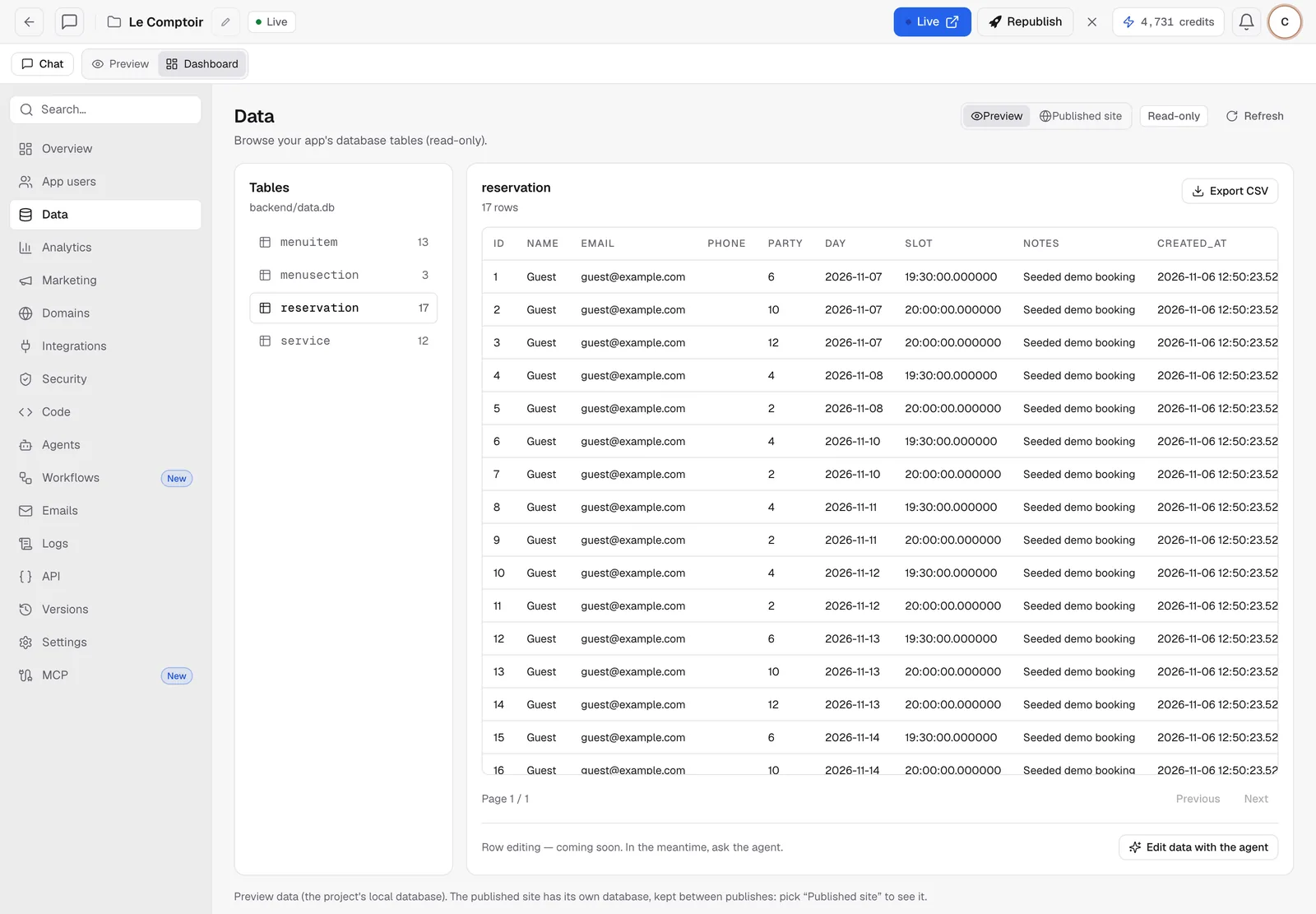
Sensitive columns (passwords, tokens) are hidden. For a store, the tables a merchant needs (products, orders, customers) come first, and the store engine's internal tables are folded away lower down. If your app doesn't keep anything in a database but in JSON or CSV files, the section lists those instead.
Change data
The Data section doesn't change anything. To fix some content, just ask the agent:
In the bookings table of the preview, delete all the test bookings under the name "Guest".For a store product, use the store admin or the agent (see Products and import).
FAQ
Why don't my sign-ups show up in the preview?
Real visitors sign up on the published site. Choose Published site in the switch.
The Reset password button doesn't appear.
Your app stores passwords in a format the dashboard can't recompute, or has no password at all (sign-in by email link, for example). Ask the agent to add a "forgot password" page.
Related
Was this page helpful?
Thanks for your feedback!
Couldn't send your feedback. Please try again later.