SEO settings and site check
Set your site's title, description, sharing image and indexing at no credit cost, then have its pages checked and its speed measured.
The Marketing section of the dashboard gathers what helps your site get found: the SEO settings (what Google and social networks display), the check of your pages, the speed measured by Google and, if you like, your Search Console data and your ranking tracking.
SEO settings, no credits
The SEO settings card writes straight into your site's files. It doesn't go through the agent and uses no credits.
- Open Dashboard › Marketing.
- In SEO settings, fill in:
- Site title: what shows in the browser tab and in Google results (60 characters at most, a counter guides you);
- Meta description: the sentence under the title in Google (155 characters at most);
- Keywords and the site's Language;
- Sharing image (Open Graph): the image shown when your link is shared on WhatsApp, LinkedIn or Facebook (1200 × 630 px recommended);
- Favicon: the small icon in the tab;
- the Google Search Console verification tag, if Google asks you for it.
- Leave Search engine indexing on Allowed so Google can list the site (turn it off for a test site).
- Check Generate robots.txt and Generate sitemap.xml: the list of pages is found in your code.
- Click Save.
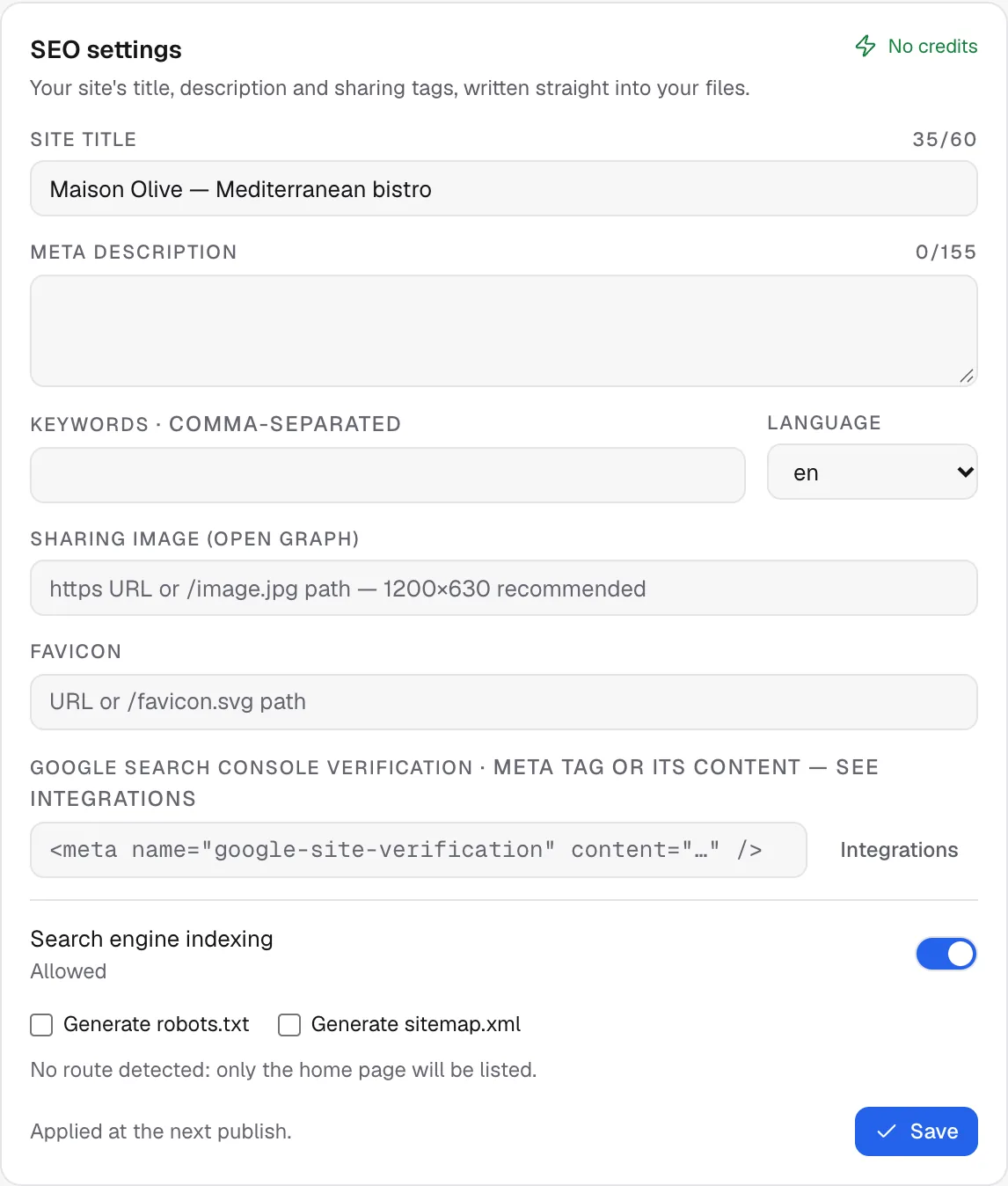
Every save creates a version named "SEO settings" in Versions, and the agent is told about it. The changes show on the live site at the next publish: click Republish.
Tip
a good meta description says what you offer, where, and what makes you different, for example "Mediterranean bistro in Lyon's 2nd district: seasonal menu, online booking, open Tuesday to Saturday".
Check the site
Once the site is published, the Checks card looks at its pages the way a search engine would.
- Click Analyze site.
- Wait a few seconds: up to 12 pages are read.
- Read the list of things to fix: missing or too-long title, missing description, image without alt text, slow page, broken link…
- For each item, you can ask the agent to fix it in one click.
Measure speed
The Speed (PageSpeed) card runs Google's official measurement on your home page, mobile version. Click Measure speed: the performance, accessibility, best practices and SEO scores appear with Google's advice. If your home page redirects (a store to /fr, for example), the page actually measured is shown.
Note
the check and the speed measurement need a published site that's reachable on the internet. Before publishing, the section shows a Publish your site to run the analysis card and only the settings are available.
Go further
The same section holds the Search Console card (the searches that bring visitors) and the Positions card (your Google rank for your keywords). They're explained in Search Console and rankings. For SEO in general, see Get found on Google.
FAQ
I saved, but Google still shows the old title.
Republish the site first. After that, Google often takes several days to come back: request a new indexing from Search Console to speed it up.
My site is a store. Do the settings work?
Yes. For a store, the title and tagline are written in the storefront configuration, and the rest in its public files.
Related
Was this page helpful?
Thanks for your feedback!
Couldn't send your feedback. Please try again later.