Search Console and Google rankings
Connect your Google account to see the searches that bring you visitors, check whether your pages are indexed and track your rankings in Google.
On this page
Google Search Console is Google's free tool for site owners. Once your Google account is connected to the project, the Marketing section shows its data: the searches that bring visitors, the indexed pages and your rankings for the keywords that matter to you.
1. Prove to Google that the site is yours
Before you can read any data, Google wants to know the site belongs to you.
- Open Search Console and add your site (ideally with your own domain).
- Choose the HTML tag method: Google gives you a line like
<meta name="google-site-verification" …>. - In FromScratch, open Dashboard › Integrations, Google Search Console card, paste the whole line (or just its content) into Verification tag, then click Save.
- Click Republish, then click Verify in Search Console.
The tag is written into your files at no credit cost, and a version named "Search Console verification" is created.
2. Connect your Google account
- Open Dashboard › Integrations, Google account card, or go straight to the Search Console card in Marketing.
- Click Connect Search Console.
- Choose the Google account that manages the site and accept read-only access.
- You come back to the dashboard: the property that matches your site is suggested automatically.

Access is encrypted, specific to this project, and removed if you click Disconnect. Only the project owner can connect or disconnect the account.
3. Read your searches
For 7, 28 or 90 days, the Search Console card shows your Clicks, Impressions, CTR (click-through rate) and average Position, compared with the previous period, the clicks day by day, then two tables, Queries and Pages. The data is always two days behind: that's Google's delay.
The Work on these queries button prepares a message for the agent with the searches where you often appear but rarely get clicked. It suggests better titles, text or new sections for those queries.
4. Check indexing
The Indexing part lists the pages of your site. Inspect asks Google whether a page is indexed, when it last read it and whether it saw a problem (20 inspections per day per project). For a page that's missing, Request indexing opens the Search Console page where you can do it.
5. Track your rankings
The Positions card tracks your Google rank for the keywords of your choice.
- Type one or more keywords in Add a keyword (several: separate with commas).
- Choose the Country and the Language, then click Add.
- Read the current position, its change over 7 and 28 days, the trend and the page that ranks.
- Work on this keyword asks the agent to improve the page for that search.
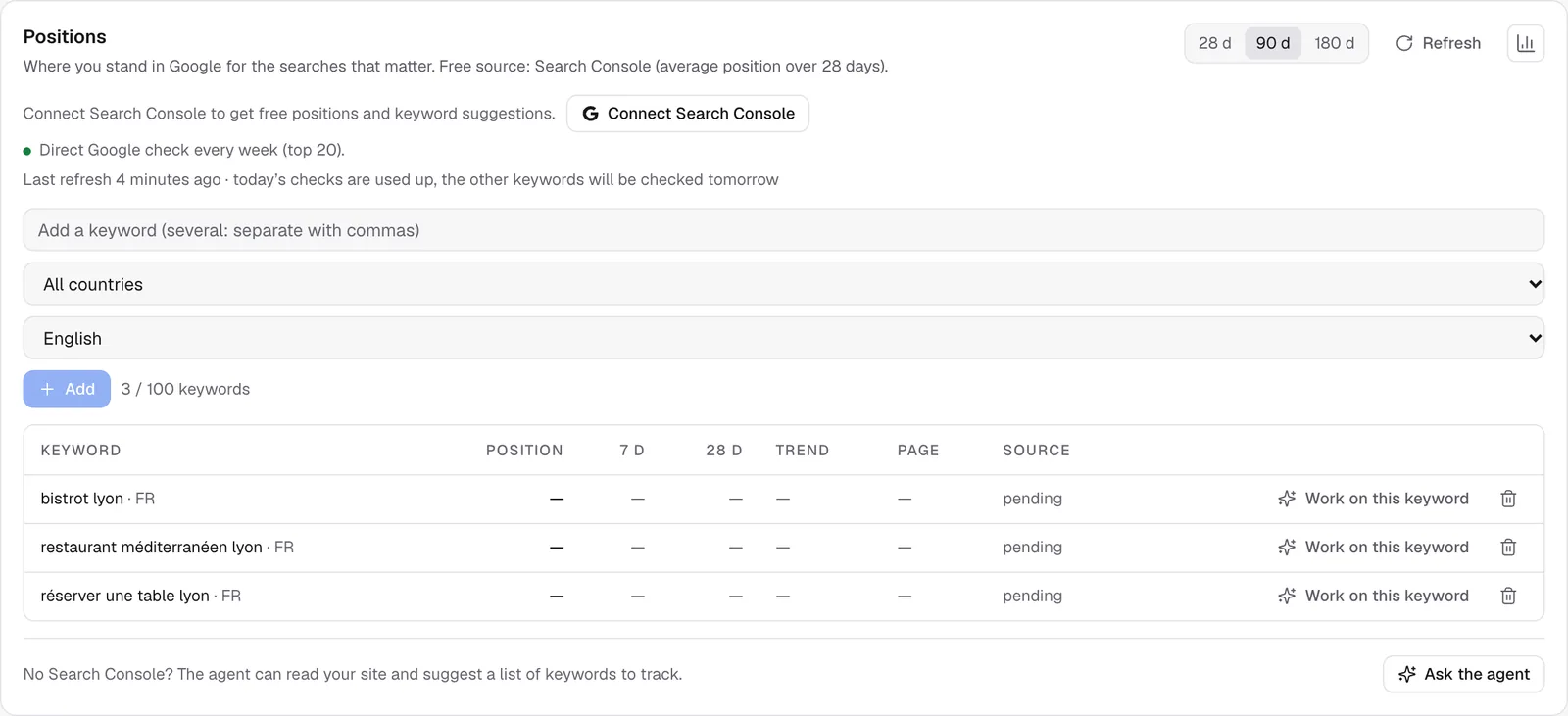
With Search Console connected, positions are free (a 28-day average, updated every week). On the Starter and Pro plans, a direct Google check every week covers the keywords Search Console doesn't see yet. You can track 20 keywords on the free plan and 100 on a paid plan, and refresh by hand once an hour. Without Search Console, Ask the agent has it read your site and suggest a list of keywords.
FAQ
The card says "not granted".
You unchecked access to Search Console on Google's screen. Click Reconnect and leave the box checked.
No property appears.
The connected Google account doesn't manage this site in Search Console. Add the site there (step 1) or connect the right account.
Related
Was this page helpful?
Thanks for your feedback!
Couldn't send your feedback. Please try again later.