Connect services: email, database, AI, maps and more
Connect Resend, an SMTP server, Supabase, S3, OpenAI, Google Maps or a webhook to your project by pasting your keys, then let the agent put them to work.
On this page
Does your site need to send emails, store photos, show a map or add an AI feature? The Services part of Dashboard › Integrations connects them in two steps: you paste your keys, then the agent writes the code that uses them. Your keys are never shown in the chat.
Available services
| Service | What it's for |
|---|---|
| Resend | Transactional emails: forms, sign-ups, order confirmations |
| SMTP | Sending emails through your own mail server |
| Supabase | Hosted database, user accounts and storage |
| PostgreSQL | An external database (Neon, Supabase, Railway…) instead of the local one |
| S3 | File and image storage (AWS, Cloudflare R2, Scaleway, OVH…) |
| Cloudinary | Image uploads with automatic optimization |
| Mapbox / Google Maps | Interactive maps: directions, store locations |
| OpenAI / Anthropic | AI features in your app: an assistant, summaries, text generation |
| Sentry | Error reports from your live site |
| Webhook | Send events (forms, orders) to Zapier, Make or n8n |
Some services only work with React apps (Supabase, PostgreSQL, Cloudinary, OpenAI, Anthropic). The others also work for a store.
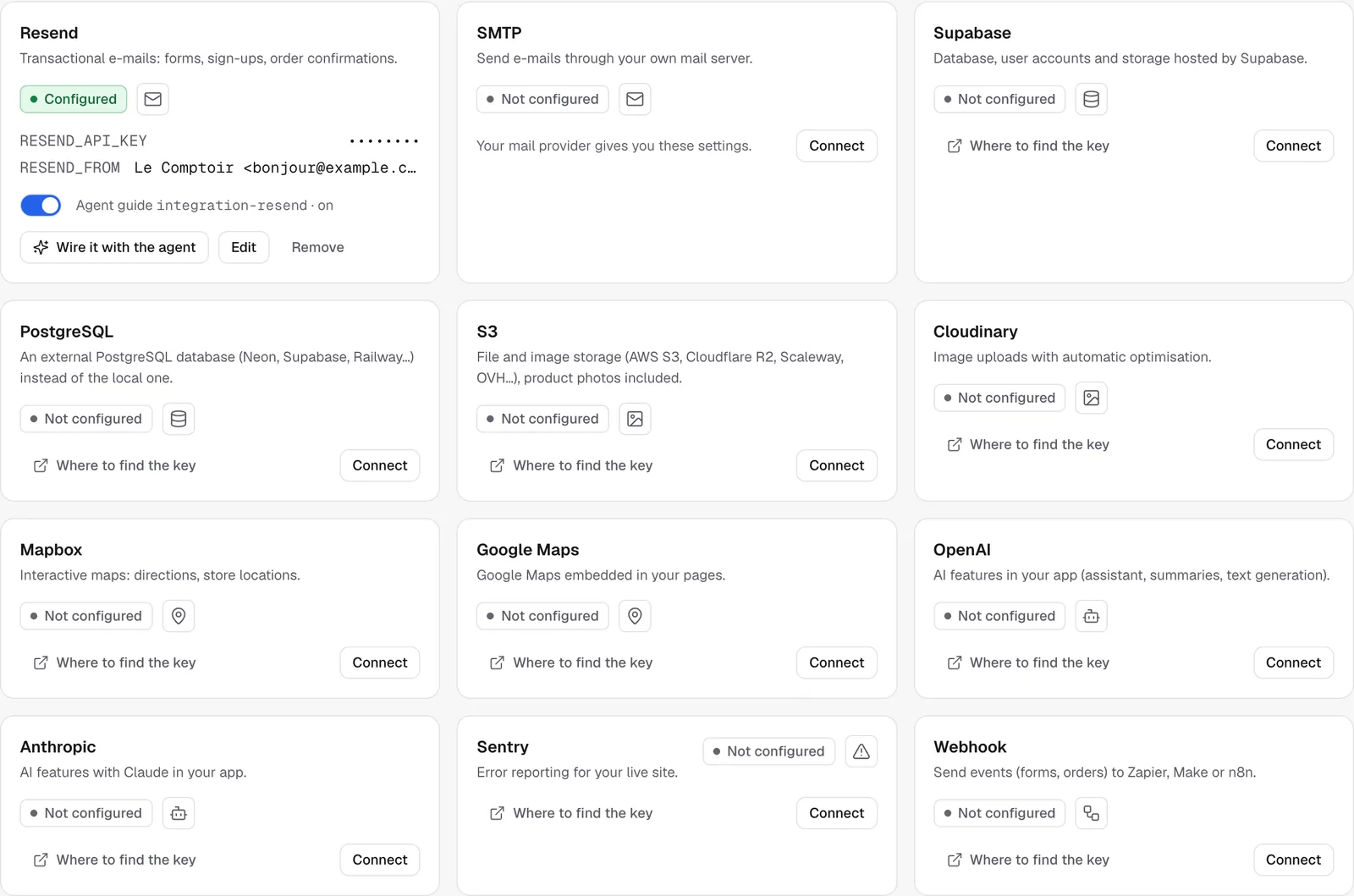
Connect a service
- Open Dashboard › Integrations and scroll down to the service cards.
- If you need help, click Where to find the key. The provider's page where you can create it opens.
- Click Connect, paste the values it asks for (for Resend, for example, the
re_…key and the sender address), then save. - The card changes to Configured. Secret keys are hidden. Only non-secret values, like the sender address, stay readable.
- Click Wire it with the agent. A message is ready in the chat, so just send it. The agent writes the code that uses the service (for example, sending a confirmation email after a booking).
Here's what happens behind the scenes. Your values are saved in the project's environment variables (see Variables and secrets), and a guide for that service is turned on for the agent (Agent guide … on). If your site is already published, the new values are sent to it and it restarts by itself.
Note
the agent knows the key exists and what it's called, but it's told never to display it. Don't paste your keys in the chat. Always use the service card.
Edit, pause or remove
- Edit: change a value. Leave a secret field empty to keep the key that's already saved.
- The agent guide switch pauses its use without deleting your keys.
- Remove deletes the values from the project's variables and turns off the guide. Then ask the agent to remove the code that used them.
Example: send the emails from a form
When someone books a table, send them a confirmation email with Resend (date, time, number of guests) and send me a copy.The emails your published site sends then show up in Dashboard › Emails. See The email log.
The other integrations in this section
This section also has audience tracking (see Tracking and pixels), your Google account (see Search Console and rankings), Stripe for stores (see Store payments), GitHub, and the photos and web search the agent uses.
FAQ
My service isn't in the list.
Add its key yourself in Security › Environment variables, then tell the agent what you want to do with it.
The card rejects my key.
Each field checks the format it expects (a Resend key starts with re_, for example). Copy it again from the provider's site, without any spaces.
Related
Was this page helpful?
Thanks for your feedback!
Couldn't send your feedback. Please try again later.