Newsletter: collect subscribers and send e-mails
Collect subscribers on your published site with double opt-in, then send newsletters in your site's colours from your own Resend or SMTP account.
On this page
The Newsletter card, in Dashboard › Marketing, gathers everything an e-mail newsletter needs: a sign-up form on your published site, the list of your subscribers, newsletters dressed in your site's colours, fonts and photos, and the sending itself through your own e-mail service.
Before you start
- The site must be published: the form lives on the live site, and the pictures in the e-mails are those of the live site.
- Connect an e-mail service in Dashboard › Integrations › Services: Resend or your own SMTP server (see Connect services). Newsletters are always sent from your account, never from FromScratch's: your subscribers see your name and your address.
- Fill in the Sender's address in the Settings tab: the business name and postal address shown at the bottom of every e-mail. The law requires it.
Collect subscribers
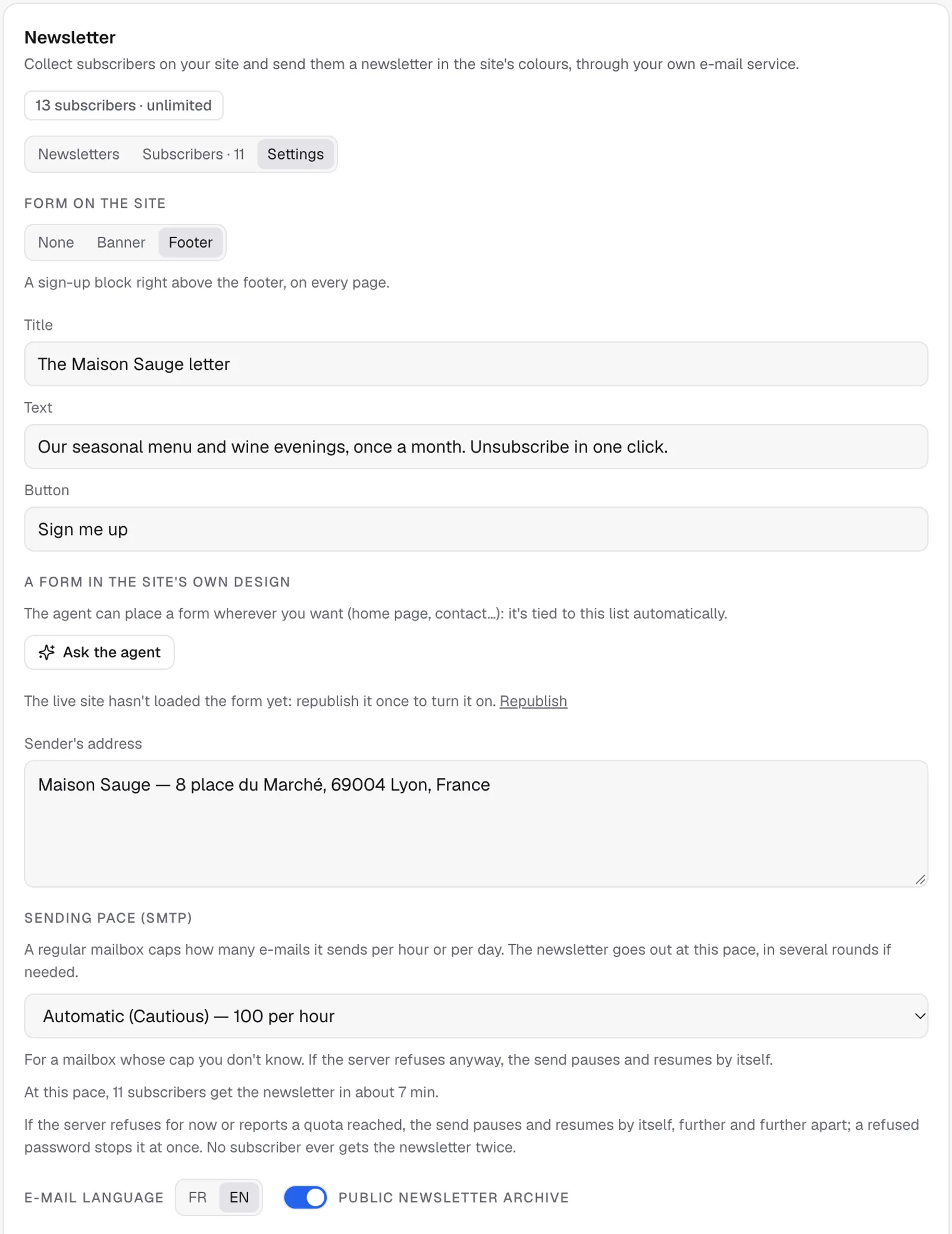
Open the Settings tab and pick, under Form on the site, where the form appears:
- Banner: a discreet box at the bottom right, after 8 seconds or halfway down the page. Once a visitor closes it, it stays away for 30 days.
- Footer: a sign-up block right above the footer of every page.
- None: nothing is added. Ask the agent for a form in the site's own design instead (the Ask the agent button writes the request): it is tied to the same list automatically.
The form takes its colours from your site and follows its light or dark look. A change of title, text or button reaches the live site within five minutes, without republishing. A site published before this feature needs one republish to load the form: the card says so until the live site has loaded it.
Note
double opt-in: every sign-up receives an e-mail with a confirmation button. Only people who click it become subscribers. This protects you from fake or mistyped addresses, and it is the proof of consent the GDPR asks for: the date, the page and a hashed trace are kept, never the visitor's IP address in clear.
Your site already has its own form
A site built before this feature, or one you had asked for « a newsletter », often has its own form: it stores the addresses in the site's database, with no confirmation e-mail and no unsubscribe link, and they don't show in the card. The card then says This site already has its own sign-up form.
- Click Connect the form: the request is written in the chat, send it. The agent keeps the form's design and copy and ties it to the card's list.
- Publish the site. While the live site still runs the previous version, the card shows Form connected — publish the site to switch it on.
- Test on the published site. In the preview, a connected form answers « Preview: nothing was sent. Sign-ups work on the published site. »: that is expected, the preview records no sign-up.
To bring over the addresses the site had already collected, click Import N subscribers from the published site and confirm that these people asked for your newsletter. They come in as confirmed subscribers; addresses already in the list are skipped.
Without an e-mail service connected, new sign-ups stay pending: the card says how many are waiting, and their confirmation e-mail goes out as soon as a service is connected.
Import a list you already have
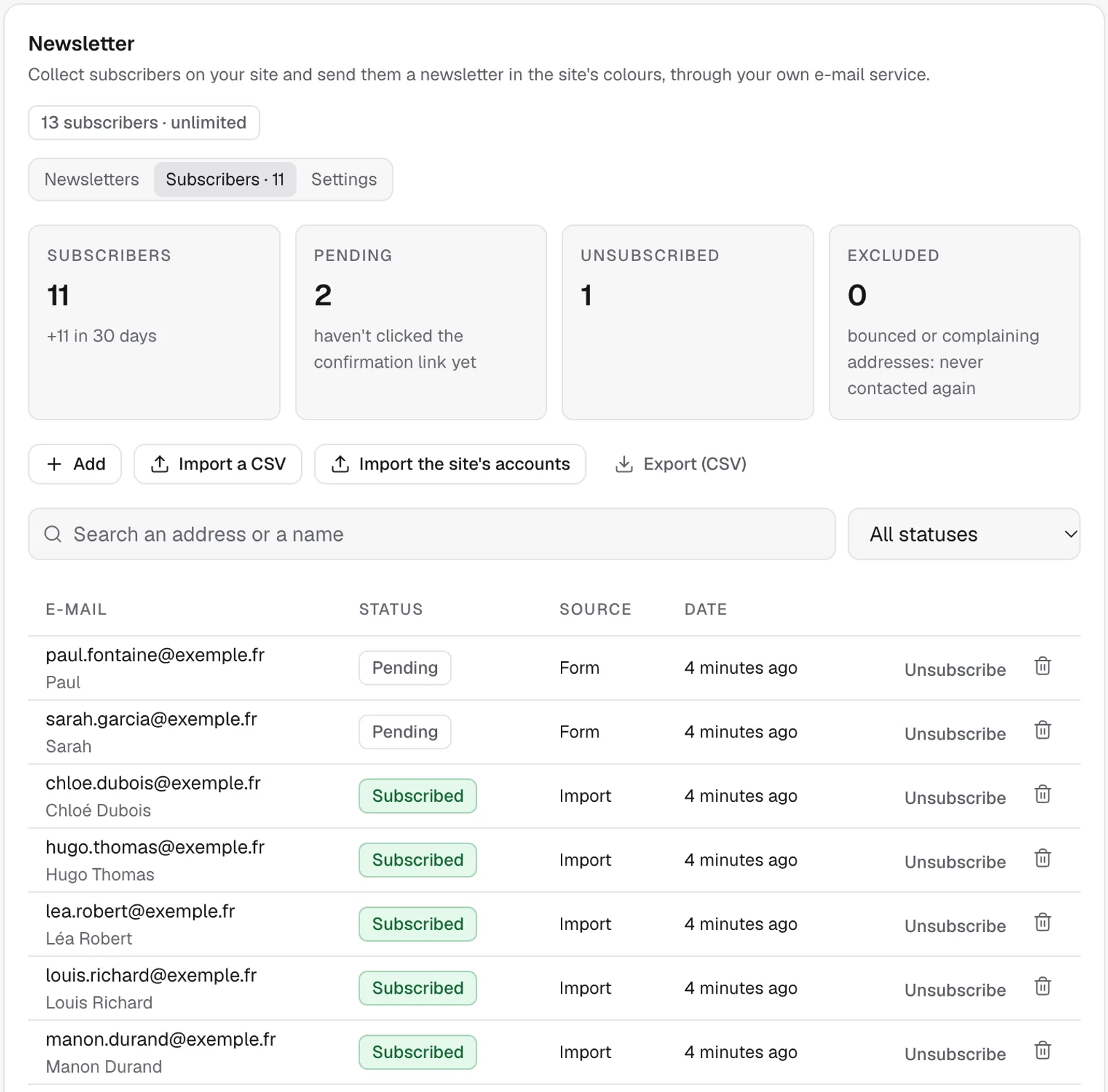
In Subscribers, Import a CSV reads a file with an email column (and name if you have one). FromScratch first shows how many addresses it found, how many are invalid and how many are duplicates. Then tick These people agreed to receive my e-mails and import. Never import a list you bought or collected elsewhere. Addresses already in the list are left as they are: a person who unsubscribed is never brought back.
For a site with accounts, Import the site's accounts reads the users of your published site's database. For an online shop, export the customers as CSV from the shop's admin, then import that file.
Write and send a newsletter
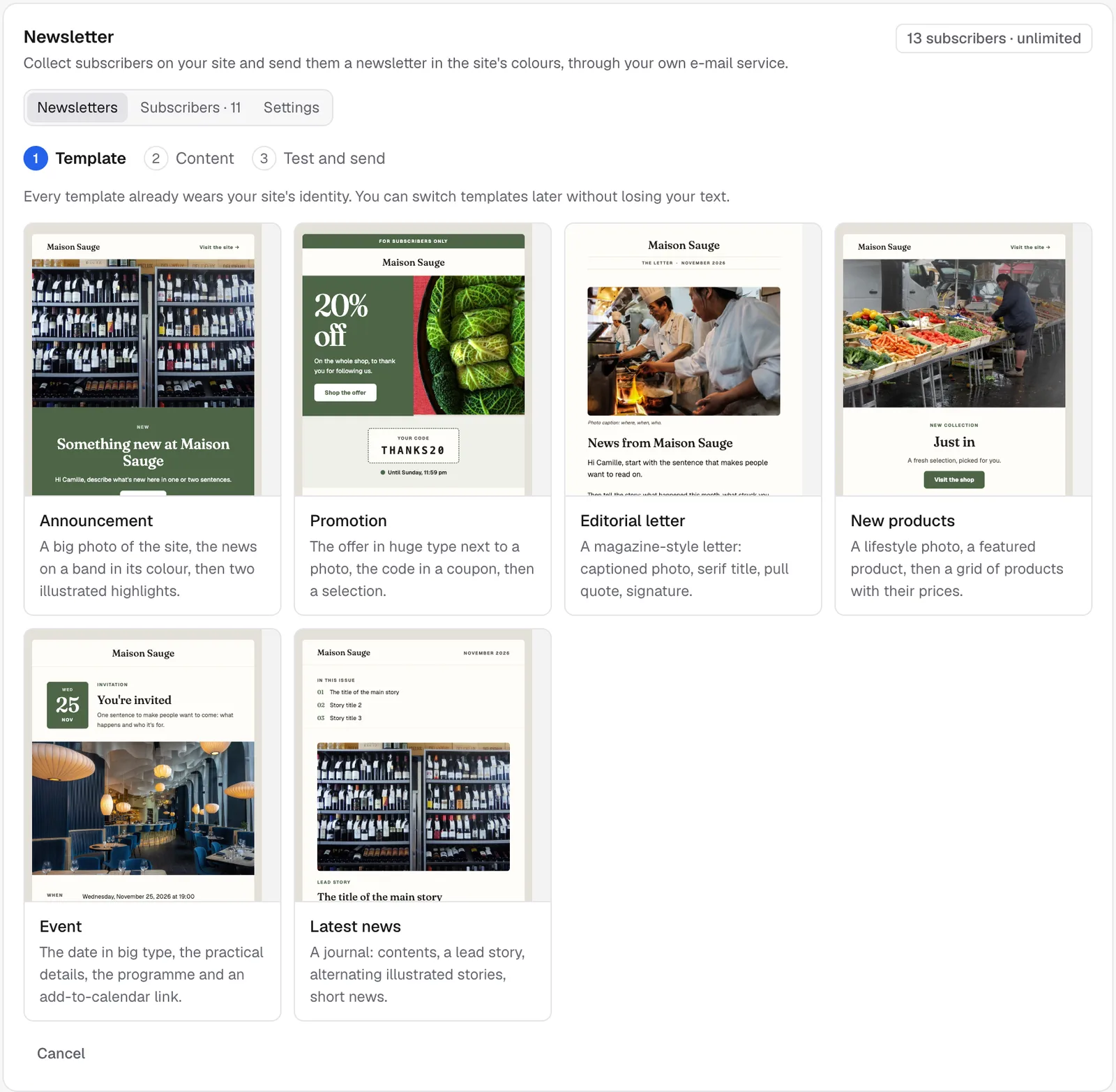
- In Newsletters, click New newsletter and pick a template: Announcement, Promotion, Editorial letter, New products, Event or Latest news. Each one already wears your site's name, colours, fonts and photos.
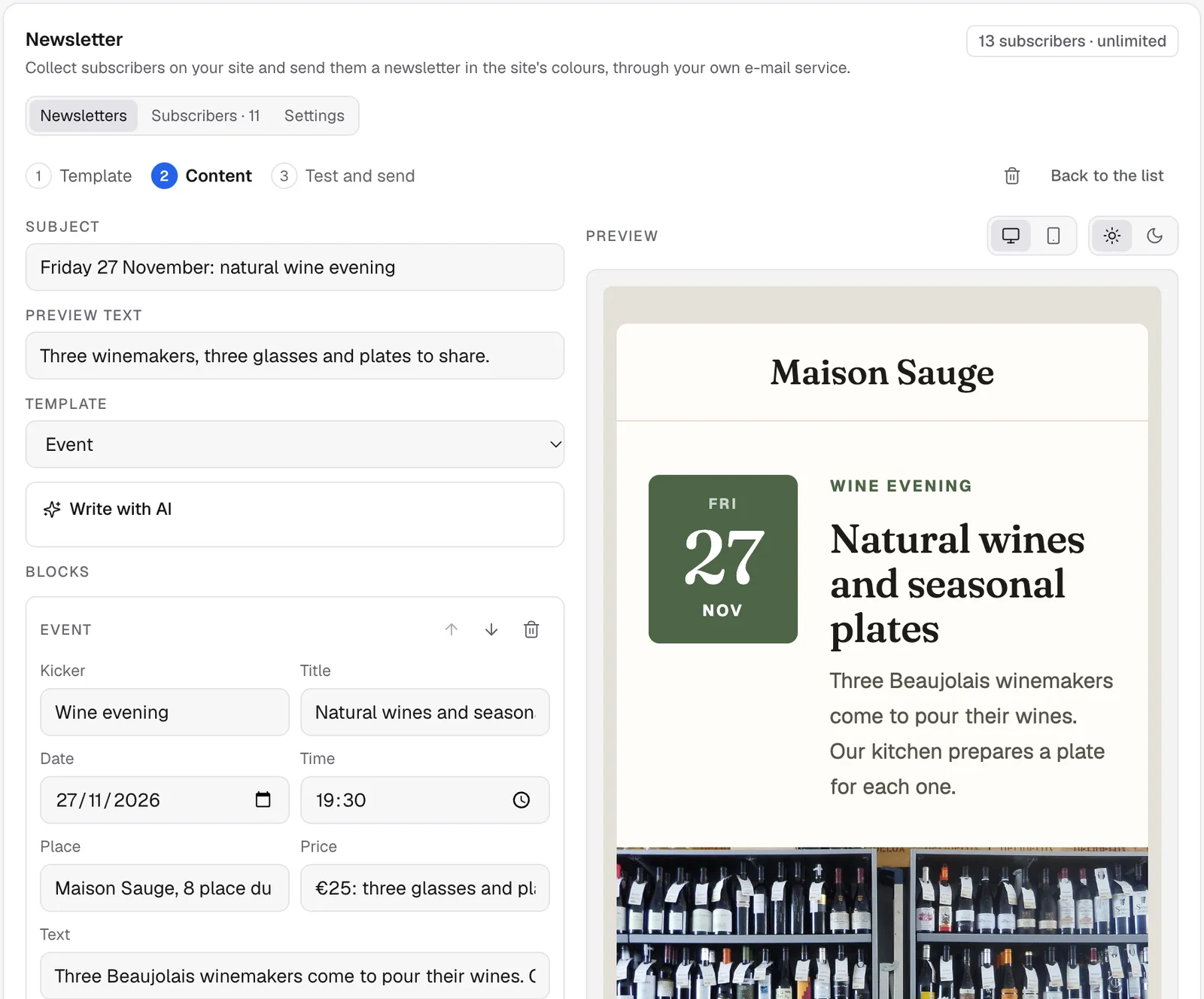
- Edit the subject, the preview text and the sections. Under Add a section, one button per type adds one at the end: photo banner, heading, text, image, button, products, item list, photo gallery, quote, offer, event, call to action, divider. Each section moves up, moves down, is duplicated or removed with the buttons of its header. The preview on the right switches between desktop and mobile. Write
{{name}}in a text for the subscriber's first name.- Colours: the newsletter takes your site's look. Open Colours to change the main colour (buttons, links), the page background, the content background or the text: click a dot (your site's own colours) or pick another colour. Back to the site's colours undoes it. Your next newsletter starts with the same colours.
- Pictures: on each picture, Choose a picture offers your site's photos and the ones you already imported; Import adds one from your computer (JPG, PNG, WebP or GIF, 8 MB at most). You can also paste a picture's address.
- Write with AI rewrites the texts from your site's content and a short brief. It never invents a price, a date or a discount: read it before sending.
- In Test and send, click Send me a test to receive it first, then Send now or Schedule the send for a later date. With SMTP, this step also shows the estimated sending time at your sending pace.
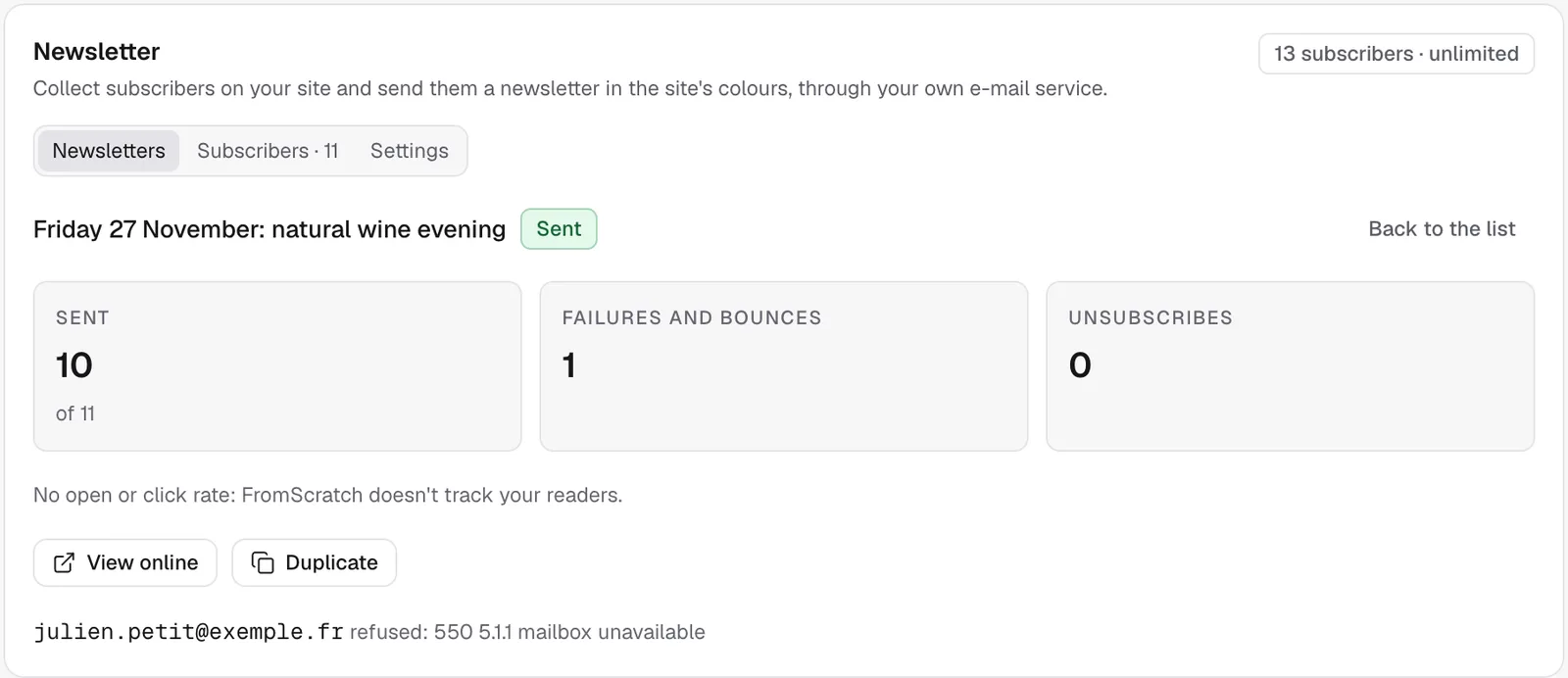
During a send, the card shows its progress and its estimated end; when the send is paused, it says why and when it resumes. Afterwards it shows how many e-mails were sent, delivered (with Resend), failed or bounced, and how many people unsubscribed. There is no open or click rate: FromScratch doesn't track your readers.
Unsubscribes and bounces
Every e-mail carries a one-click unsubscribe link, also offered by Gmail and Outlook next to the sender's name. With Resend, paste the Resend tracking address of the Settings tab into Resend's webhooks: an address that bounces or marks you as spam is then excluded and never contacted again. The confirmation e-mails and your tests also appear in the e-mail log; the newsletters themselves are counted on the card.
Sending pace (SMTP)
A regular mailbox caps how many e-mails it sends per hour or per day. With an SMTP server, pick its type in Settings › Sending pace (SMTP): Automatic (detected from your SMTP server), Cautious (100 per hour), Gmail (personal account) (20), Google Workspace (80), Microsoft 365 (400), OVHcloud (MX Plan) (180), IONOS (Mail Basic / Business) (450), Bulk-sending service (no limit) or Custom. The card shows how long a send to your whole list takes, and the newsletter goes out at that pace, in several rounds if needed.
If the server refuses for now or reports a quota reached, the send pauses and resumes by itself, further and further apart; the card says when. A refused password or sender address stops it at once: fix it in Integrations, then send again — only the subscribers who received nothing get it. No subscriber ever gets the newsletter twice. Resend needs no setting: a quota reached also pauses the send, with an automatic retry.
Limits per plan
The number of subscribers per project and of newsletter e-mails per month depends on your plan: 100 subscribers and 300 e-mails on Free, 2,000 and 10,000 on Starter, 20,000 and 100,000 on Pro. The card shows what you have used. When the list is full, the form politely says sign-ups are closed. See Change plan.
Was this page helpful?
Thanks for your feedback!
Couldn't send your feedback. Please try again later.