Connect your Expo account and set up your app
Paste an Expo access token in Dashboard › Mobile, check your app's name and identifiers, then link the app to EAS so it can be built and updated.
On this page
Your app's installable files are built by Expo, the company behind the tools your app is made with. The builds run on your own Expo account: your apps, builds and updates stay yours, on expo.dev, even without FromScratch. This page explains how to connect that account to your project, then how to prepare the app before the first build.
What you need
- A Starter or Pro plan: builds and store publishing are part of the paid plans. The preview and testing on your phone stay free. See Plans and the free tier.
- To be the project owner: other people invited to the project see the cards but can't change them.
- A free Expo account. Expo's free plan includes a monthly build quota; beyond it, Expo bills you according to your plan with them, not FromScratch.
Connect the account
- Open Dashboard › Mobile, or click Mobile builds in the project's header.
- In the Expo account card, no account yet? Use the link after « No account yet? It's free: » to sign up on expo.dev.
- Click Create my Expo token: the token page of expo.dev opens. Click « Create token », give it a name (for example "FromScratch"), and copy it.
- Back in FromScratch, paste it in Expo access token and click Connect.
FromScratch checks the token with Expo straight away. Once it is accepted, the card shows Connected as followed by your Expo user name, and the list of Accessible accounts: your personal account and the organisations you belong to.

A personal token or an organisation robot token both work. Agencies building apps for clients often create a robot token in the client's Expo organisation, so the builds land there from the start.
Note
the token is encrypted and never shown again, not even to you. You can revoke it at any time on expo.dev, which cuts FromScratch's access at once.
Replace the token swaps it for a new one. Disconnect removes it from this project: your builds and updates stay on expo.dev, and you can revoke the token there if you no longer use it.
Check the app's name and identifiers
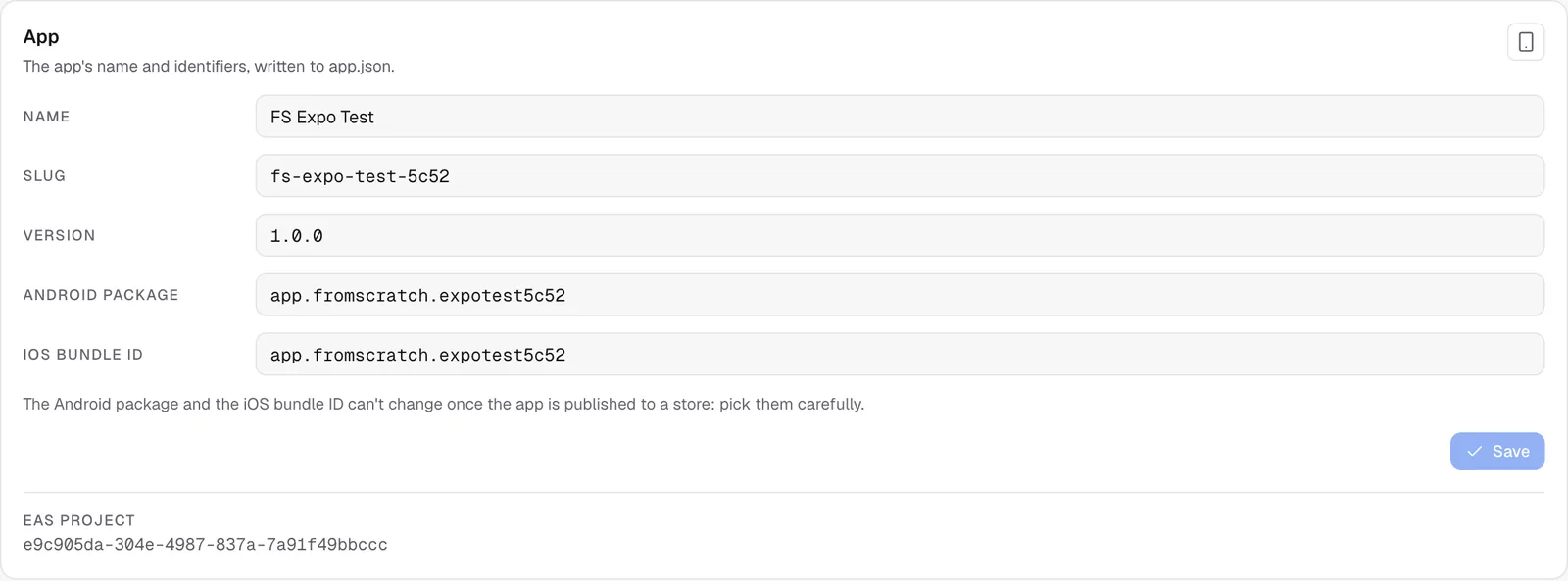
The App card shows what will be written in your app's settings file (app.json):
| Field | What it is |
|---|---|
| Name | The name under the icon on the phone. |
| Slug | A short technical name used by Expo. |
| Version | The version shown in the stores, for example 1.0.0. |
| Android package | The unique identifier of the Android app, such as com.mybakery.loyalty. |
| iOS bundle ID | The same for the iPhone app, usually identical to the Android package. |
Warning
the Android package and the iOS bundle ID can't change once the app is published to a store. Use your brand, in lowercase, with dots:
com.brand.app.
Link the app to EAS
EAS is Expo's build and update service. Before the first build, click Link to EAS in the App card. FromScratch creates the project on your Expo account (« Linking to EAS », 1 to 3 minutes) and the card then shows the EAS project identifier. This is done once per app.
Only one Expo task runs at a time per project. You can leave the page while it runs; open the preview if the dashboard says the environment is asleep.
FAQ
Do builds cost credits?
No. Builds run on Expo's servers and count toward your Expo account's quota. Only the agent's replies use FromScratch credits. See How credits work.
Can I use the same Expo account for several apps?
Yes. Connect the same token in each mobile project; each app gets its own EAS project.
Related
Was this page helpful?
Thanks for your feedback!
Couldn't send your feedback. Please try again later.