Change an image on your site, shop or app
Click any picture in the preview and replace it: upload your own file, pick a free photo or ask the agent. Free, with the framing kept.
On this page
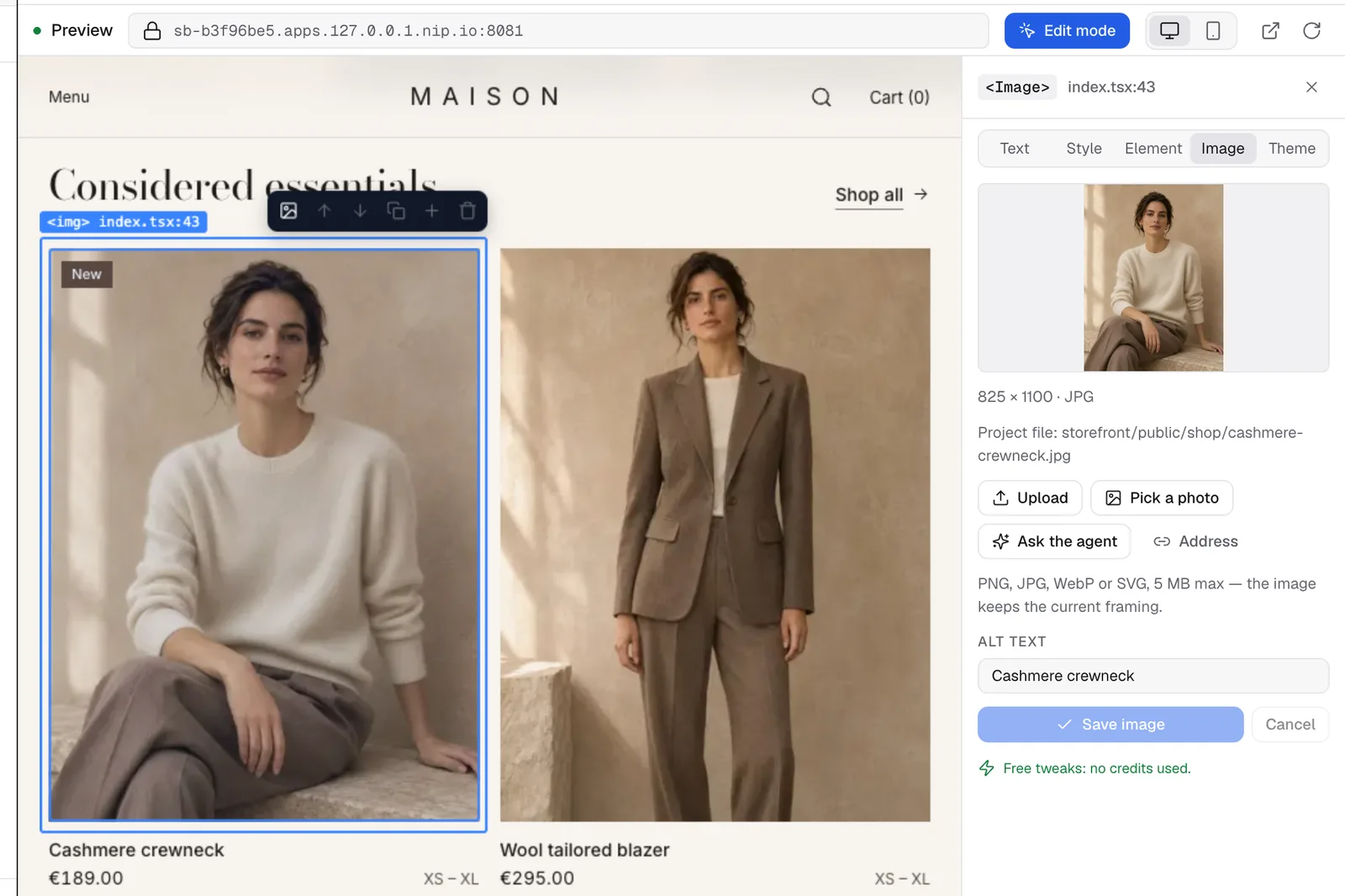
Every picture of your project can be replaced from the preview: a banner, a dish on a menu, a product photo in your shop, a background behind a title, an image in your mobile app. You pick the new picture, see it in place at once, and save. It's free: no credit is used.
Open the Image tab
- In the preview, click Edit (the button above the page).
- Click the picture you want to change. A picture under a text-less layer (a dark shade over a banner, a card) is selected too.
- The Image tab opens on the right. You can also click the picture icon, first in the small bar shown above the selected element.
The tab shows the current picture, its size and where it comes from: a file of your project, a web address written in the code, an address stored in your database, or a product of your shop. When the same picture is used in several places, the tab says Applies to N places on the site: they will all change together.
Three ways to replace it
- Upload: a PNG, JPG, WebP or SVG file from your computer, 5 MB maximum.
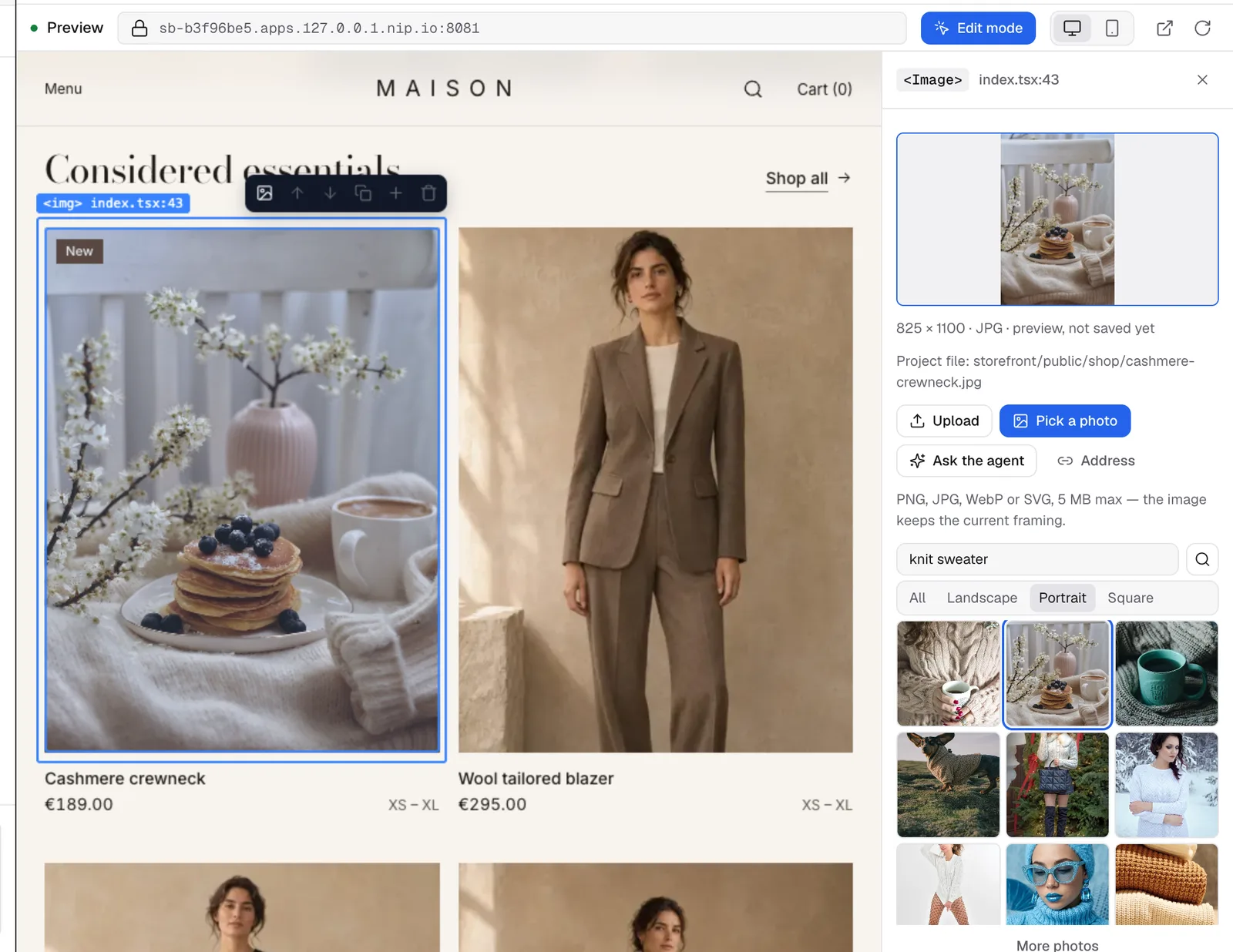
- Pick a photo: search free stock photos (Unsplash, Pexels, Pixabay, Wikimedia Commons, depending on what your platform offers). Filter by Landscape, Portrait or Square, click More photos for the next ones, then click the one you like. The photographer and the licence are shown below the grid.
- Ask the agent: describe the picture you want (« a restaurant terrace at sunset, warm tones »), click Prepare the message: the chat is filled with a precise request (which picture, where it is, the size to keep). Read it, then send it. The agent uses credits, like any message.
You can also paste the Address of an image (it must start with https://). It is downloaded into your project when you save, so only use a picture you are allowed to use.
Check, then save
The new picture shows in the preview as soon as you choose it, and joins the list of unsaved changes (the tab says « in the list to save »). Save, in the bar above the preview, writes it into your project with your other changes; Put the original image back cancels it.
- A picture that is a file of your project keeps its name and format: it is replaced in place, cropped to the same proportions, so the layout doesn't move.
- A picture that came from a web address is downloaded into your project (an optimised WebP plus a smaller version for phones), and every place that used the old address is updated, in the code and in the database.
- The Alt text field describes the picture for screen readers and Google. It is saved with the new picture.
Each save creates one version in Versions (« Visual edit — image … » when the picture is the only change, « Visual edit — N changes … » otherwise), and the agent is told about it, so it won't put the old picture back. Free photos get their credit in a CREDITS.md file of your project.
Shops and mobile apps
- Online shops: the theme pictures and the product photos can be replaced the same way. A product photo also changes in your shop's admin.
- Mobile apps: in the phone preview, click a picture of the app. Only the Image tab is offered there (texts and styles of an app are changed by the agent). The new picture reaches the phone with the next reload in Expo Go, or with your next update.
When a picture can't be changed here
Some pictures are built by the code: one item of a list, a picture shown only under a condition, an image embedded in the code. The tab then says why and keeps Ask the agent available.
Pictures stored in your data
When a picture comes from your app's database (a dish of a menu, a team member, a project of a portfolio), you can also change it row by row in Dashboard › Data:
- Open the table (for example
menuitem). The pictures show as thumbnails with a Change button; an empty picture column offers Add. - Upload a file, pick a free photo or paste an address, then click Save image.
Only that row changes. With Preview | Published site at the top of the page, you choose which data you edit: the preview's, or the live site's — the published site shows the new picture at once, without republishing.
Note
changing a picture with Edit in the preview updates the preview's data only, and every row using the same picture. Your published site keeps its own data: change it from Data › Published site, or see the data of your published site.
To change texts, colours or the layout, see Visual edit.
Was this page helpful?
Thanks for your feedback!
Couldn't send your feedback. Please try again later.