Video ads made from your published site
Turn your published site into an MP4 ad: pick one of 10 templates and a format, review the storyboard, render it, then download or share the video.
On this page
The Video ad card makes a short MP4 advert out of your published site: its real pages, photos, products, colours and texts. You choose a template, FromScratch writes a storyboard you can correct, then renders the video, ready for Instagram Reels, TikTok, YouTube or your own site.
Before you start
- The site must be published: the ad is made from the live pages, not from the preview. Until then, the card shows Publish your site first.
- The card is in Dashboard › Marketing, under the SEO cards.
- Preparing the storyboard is free. Only the final render costs credits (see Cost and monthly quota).
Make an ad, step by step
- Open Dashboard › Marketing and scroll to Video ad.
- Pick a template (move the pointer over a tile to see it move). The one marked Recommended suits your kind of site.
- Choose the Format: 9:16 vertical (Reels, TikTok, Stories), 16:9 horizontal (YouTube, a website) or 1:1 square (feeds).
- Choose the Language of the texts and the voice (FR or EN), and turn the Voice-over on or off.
- Click Prepare the storyboard. FromScratch reads your site and writes the ad in about a minute.
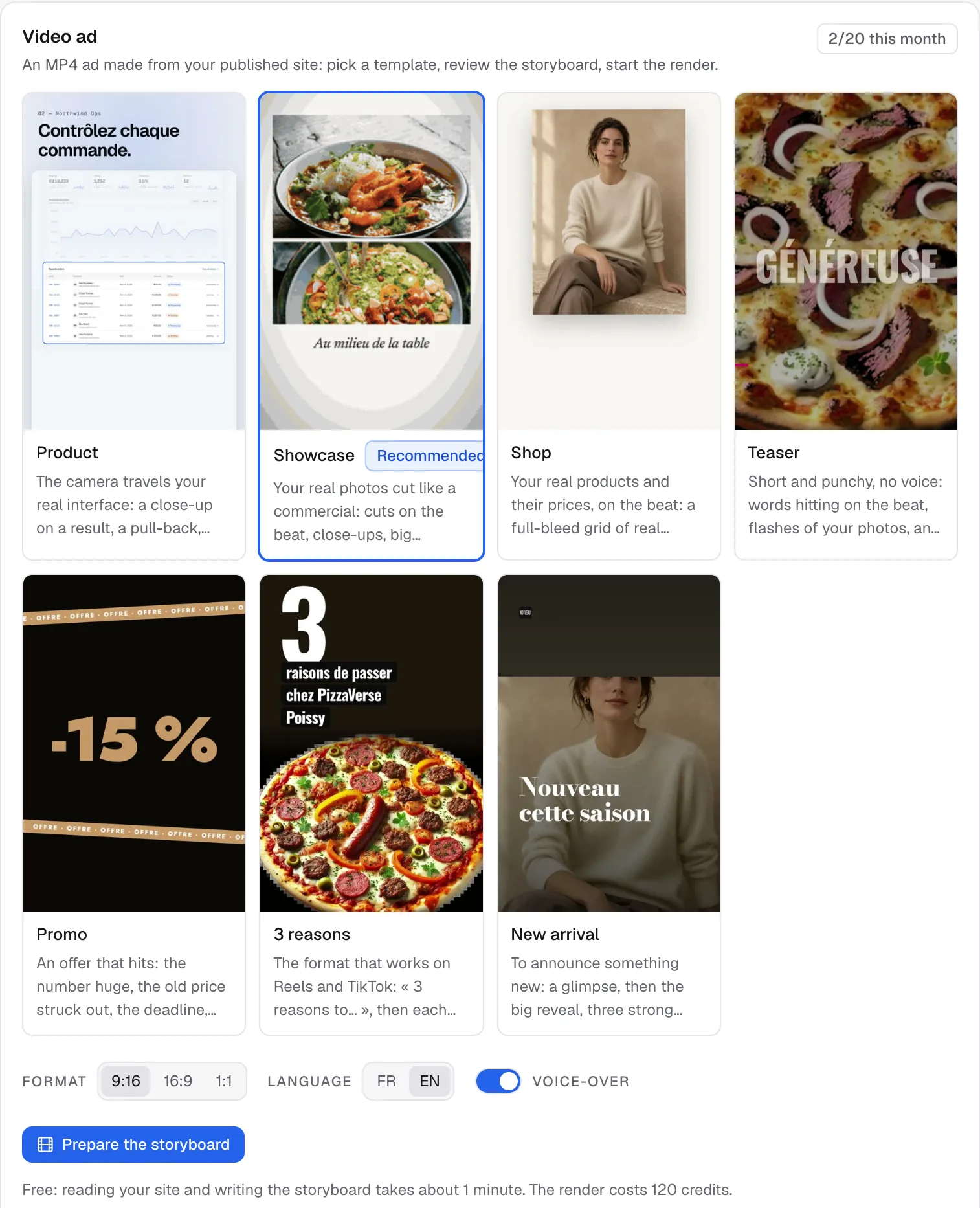
The 10 templates
- Product: the camera travels over your real interface, a close-up on a result, then each feature lit up. For apps, SaaS and tools.
- Showcase: your photos cut like a commercial, on the beat, with large editorial type and a practical card (address, hours). For restaurants, local shops, craftspeople, venues.
- Shop: your real products and their prices, in rhythm, each product on its own background. The site must show products with a photo and a price.
- Teaser: short and punchy, no voice: words that hit on the beat, flashes of your photos, the site revealed at the end. For a launch or an event.
- Promo: one offer in huge type, the old price struck out, the deadline and the promo code. Nothing is invented: the offer comes from your site, or you type it in the editor (the empty fields are marked to fill in).
- 3 reasons: the « 3 reasons to… » format of Reels and TikTok, big captions over your photos. Each reason is a fact read on your site.
- New arrival: announce something new: glimpsed, then revealed, three strong points and when it's available.
- Studio: a product film: a sentence that lights up word by word as it is spoken, real captures of your site with a zoom on the action, your photos cut on the beat, then your logo. Vertical 9:16 only.
- Aura: no voice: giant words in a gradient built from your brand colour, what you offer one by one, a mosaic of your photos and your address typed at the end. 16:9 or 9:16.
- Blocks: no voice, sober: a visible grid in your site's colours, words revealed by a block, your photos snapping into the grid, what you offer ticked off, then your logo. 16:9 or 9:16.
Note
Shop needs products with a photo and a price, 3 reasons, New arrival, Studio, Aura and Blocks need photos. If your site has none, the preparation stops with an explanation and offers another template. Nothing is charged.
Review and edit the storyboard
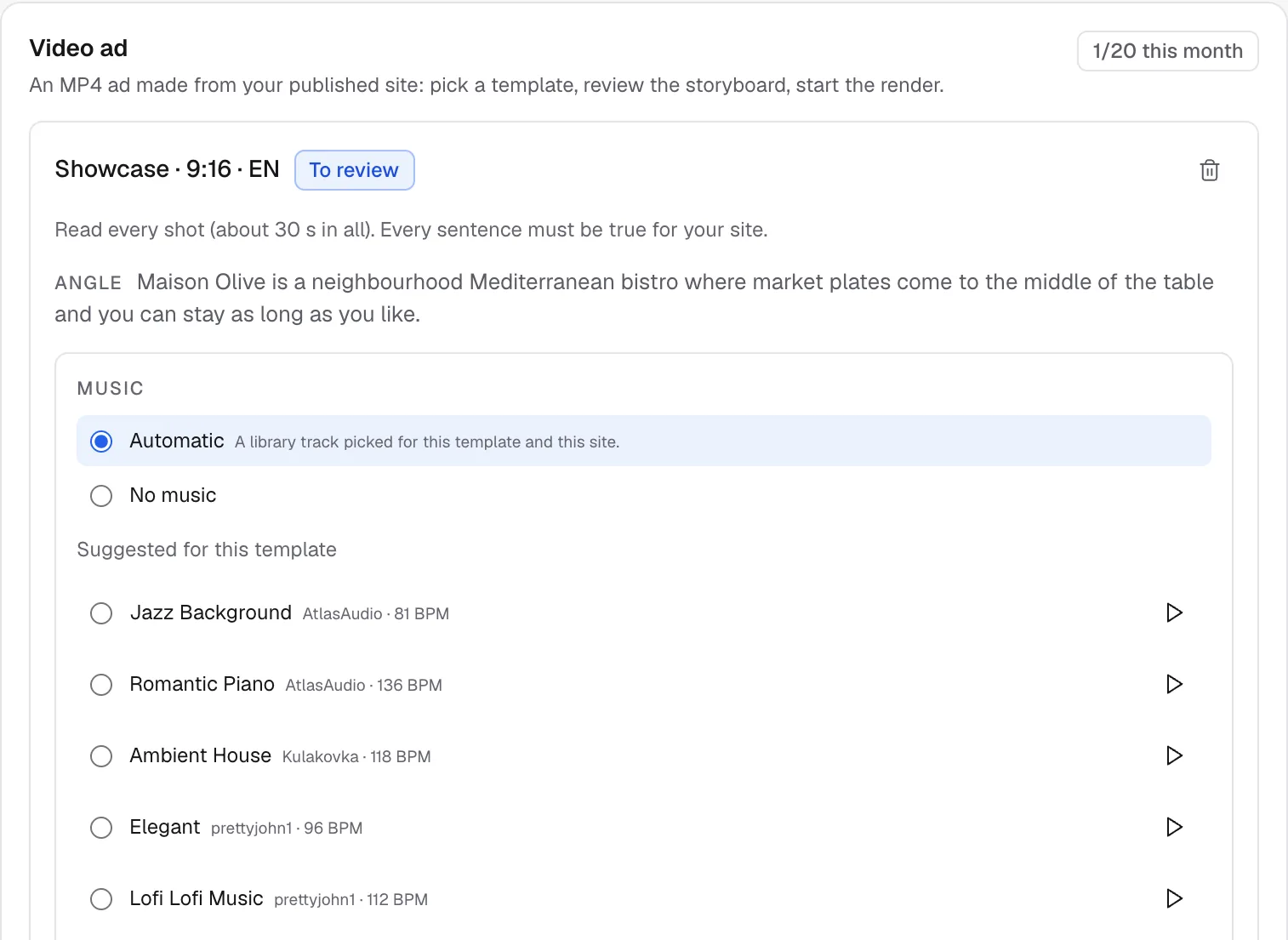
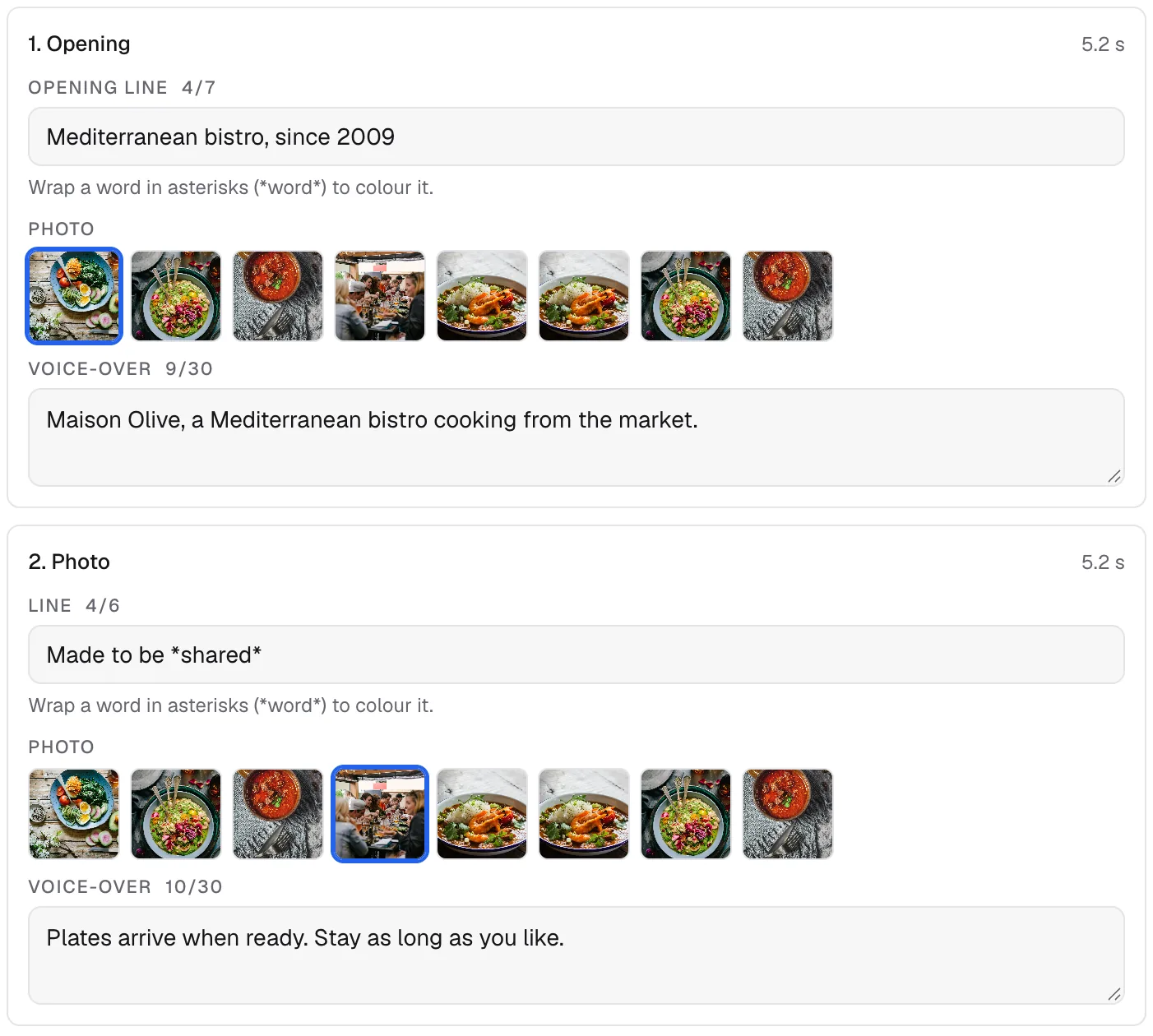
When the storyboard is ready, the ad shows To review. Each shot has its texts, its picture and, with a voice-over, the sentence that will be spoken.
- Fix any text: every sentence must be true for your site. The texts are written by an AI from your pages.
- Put a word between asterisks (
*word*) to show it in your brand colour. - Swap a picture for another one taken from your site.
- Choose the Music: Automatic (a track picked for the template and your site), No music, or a track from the library (listen to an excerpt first). The tracks are under the Pixabay licence and credited in the video.
- Click Save to keep your changes, then Start the render when you are happy.
Render, download and share
Start the render makes the video: about one to two minutes. A progress bar follows the steps (voice-over, timing on the music, frames, sound). You can leave the page: the ad keeps going and appears in Your ads.
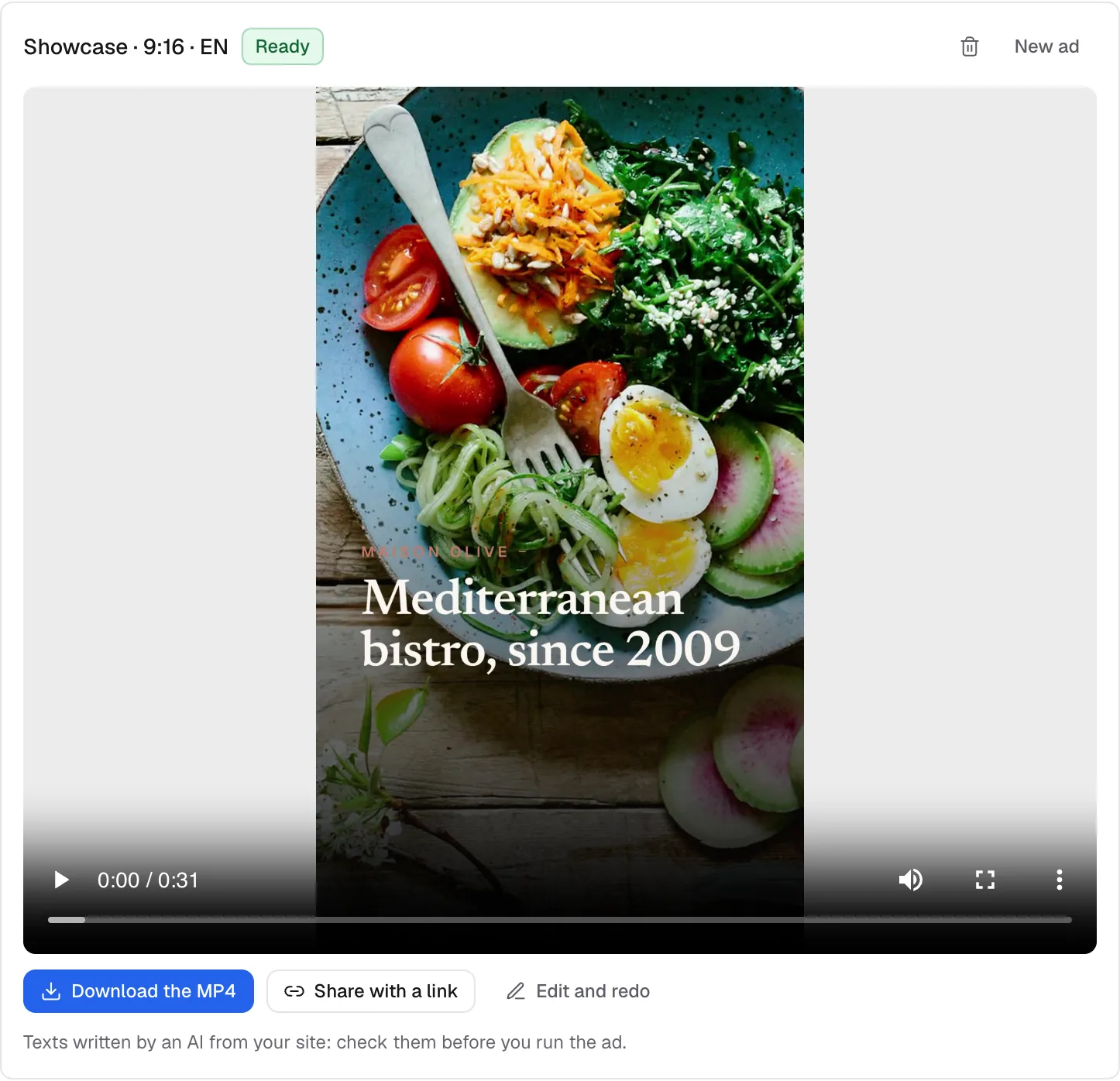
When it's ready:
- play it in the card, then Download the MP4;
- Share with a link: a public page with the player, that you can send to anyone; Stop sharing turns the link off;
- Edit and redo reopens the storyboard to change a text and render again;
- Delete removes the video, its storyboard and its share link.
Voice-over
The voice-over is optional. Teaser never has one: words and music carry it. If the platform's voice is unavailable at the moment, the card says so and the ad is made with music only; if a voiced render fails for that reason, Render without voice starts it again, and no credits were taken.
Cost and monthly quota
- Preparing a storyboard is free (up to 6 per project per day).
- The render costs the credits shown on the button (120 credits by default). They are taken when the render starts and refunded automatically if it fails.
- Each plan includes a number of rendered ads per calendar month, shown at the top right of the card (for example
0/20 this month): by default 1 with Free, 5 with Starter and 20 with Pro. The quota renews on the 1st of the month. See How credits work.
Limits
- One ad at a time per project: wait for the current preparation or render to finish before starting another.
- The ad only uses what is on your published site: it never invents a price, an address or an offer. Republish first if you have just changed the site.
- Always watch the video before posting it: you remain responsible for what it says.
FAQ
The preparation says my site didn't answer.
Your published site must be online when the ad is prepared. Open its address to check, then try again.
Can I make the same ad in another format?
Yes: open the ad, choose another format before rendering, or prepare a new ad with the same template.
Related
Was this page helpful?
Thanks for your feedback!
Couldn't send your feedback. Please try again later.