Your site's email log
Check that your site's emails are going out: sent, failed, bounced and spam reports, without ever storing their content, and send yourself a test.
On this page
A booking confirmation, a welcome message after sign-up, an order receipt: when your site sends emails, you want to know whether they go out and whether they arrive. The Emails section of the dashboard keeps that log for you.
Before you start
Your site needs a sending service. Connect Resend or your SMTP in Dashboard › Integrations, then ask the agent to send the emails you need (see Connect services). Without a service, the section shows No email sending configured, with a shortcut to the integrations.
Read the log
- Open Dashboard › Emails.
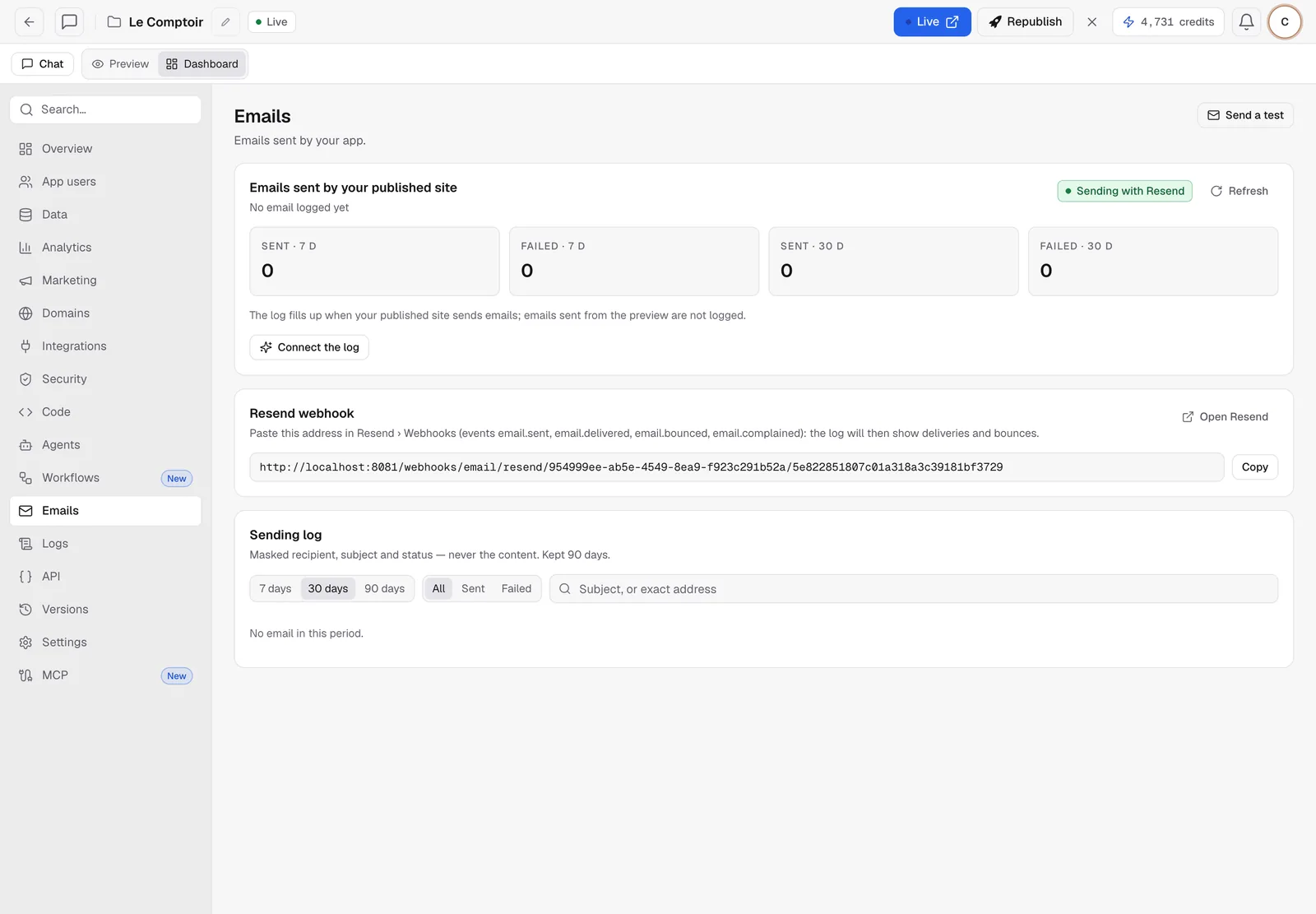
- The Emails sent by your published site card sums up the Sent and Failed emails over 7 and 30 days, and the service used (for example Sending with Resend).
- The Sending log lists every email: masked recipient, subject, status and date. Filter by period (7 days, 30 days, 90 days) or by status (All, Sent, Failed), or search for a subject or an exact address.
An email can have these statuses: queued, sent, delivered, failed, bounced (the address doesn't exist) or marked as spam (the recipient flagged it as unwanted).
Note
the log never contains the text of your emails. The recipient's address is masked (
j***@domain.com), and searching by address only works with the exact address. Entries are kept for 90 days.
Connect the log
The log fills up when your published site reports its emails. Apps created with the Resend and SMTP guides already do this. For an older app, click Connect the log. A message is ready for the agent, who adds the reporting to the sending code. Then republish your site.
Emails sent from the preview aren't logged, because they're just tests.
Track delivery with Resend
By default, the log knows whether the email left. To know whether it arrived, or was rejected, connect the Resend webhook:
- In the Resend webhook card, click Copy to copy the address.
- Click Open Resend, go to Webhooks and add this address.
- Check the events
email.sent,email.delivered,email.bouncedandemail.complained.
The statuses in the log then update by themselves. This address is unique to your project, so don't share it.
Send yourself a test email
The Send a test button, at the top right, sends an email to the address of your FromScratch account, using your project's Resend key or SMTP (not FromScratch's). It's the quickest way to check a key or a password. It's limited to 3 sends every 5 minutes.
FAQ
The test goes out, but my customers receive nothing.
Look at the log. A Failed email gives the reason. Most often, the sender address isn't verified at Resend: your domain has to be validated there.
The log stays empty even though my site sends emails.
Make sure the site was published after the reporting was added, and click Connect the log if needed.
Related
Was this page helpful?
Thanks for your feedback!
Couldn't send your feedback. Please try again later.