Build your app for Android and iPhone
Start an Android test APK, a Google Play AAB or an iPhone build from Dashboard › Mobile, follow its status, install it with a QR code and read the logs.
A build turns your project into an app file a phone can install. Expo makes it on its servers, on your Expo account, from the code the agent wrote. You start builds from Dashboard › Mobile › Builds; this page explains which one to choose, how long it takes and what to do with the result.
Before your first build, connect your Expo account and link the app to EAS: see Connect your Expo account and set up your app.
Three kinds of builds
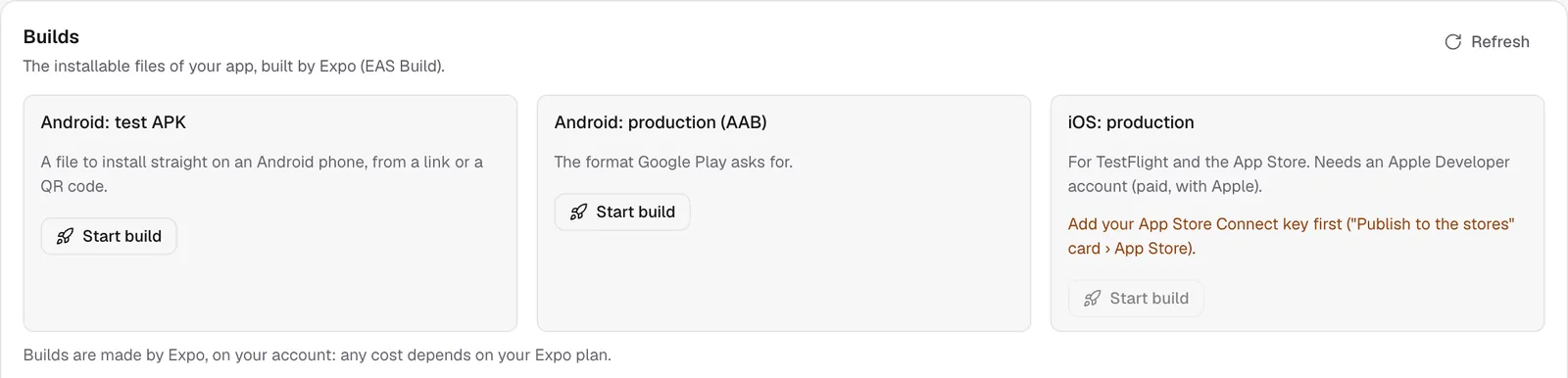
| Build | What it's for | Who can install it |
|---|---|---|
| Android: test APK | Trying the real app before the stores, sharing it with a few people | Any Android phone, from a link or a QR code |
| Android: production (AAB) | Google Play: the format the store asks for | Nobody directly: it goes to Google Play |
| iOS: production | TestFlight and the App Store | iPhones, through TestFlight then the App Store |
The iPhone build needs an Apple Developer account (paid, with Apple) and your App Store Connect key, added in the Publish to the stores card, App Store tab. See Publish your app on the App Store.
Start a build
- Click Start build on the tile you want.
- Confirm. The window reminds you that the build counts toward your Expo account's quota.
- FromScratch sends the project to Expo (« Sending the build », 1 to 3 minutes). You can leave the page.
- Expo then builds the app: often 10 to 20 minutes, longer when the free queue is busy, and 15 to 30 minutes for iOS.
Only one Expo task runs at a time per project: the buttons stay greyed out while one is running (« An Expo task is already running »).
Note
Android signing is handled for you. On the first Android build, Expo creates your app's signing key and keeps it on your Expo account for every later version. Don't delete it there: Google Play only accepts updates signed with the same key.
Follow the build
Under Latest builds, each line shows the platform, the kind of build, its status, the version and the date. The statuses are Queued, In progress, Finished, Failed and Canceled. Click Refresh to update the list.
On a finished build:
- Download gets the file;
- QR code (Android) shows a code to scan with an Android phone: it downloads the APK and offers to install it;
- Logs shows the end of Expo's log, and Full log opens it on expo.dev.
To install an APK, Android may ask you to allow installs from your browser: accept for this time, then install.
When a build fails
A failed build shows Expo's error under its line. Click Ask the agent: the chat is pre-filled with the error and a request to find the cause in the project and fix it without changing the app's identifiers. Send it, wait for the fix, then start the build again. The most common causes are a module added outside of Expo's list or a typo in app.json.
FAQ
Can I install the iPhone build directly, like the APK?
No. Apple only lets you install an app through TestFlight or the App Store. Installing on registered test iPhones (ad hoc) is coming soon. For quick tests, Expo Go works on any iPhone.
Do I need a new build after every change?
Not always. Changes to screens, texts and images can be sent as an update to apps already installed. A new build is needed for native changes (a new module, a permission, the icon, a new Expo version). See Update your app without the stores.
Related
Was this page helpful?
Thanks for your feedback!
Couldn't send your feedback. Please try again later.