Expose your app over MCP (Claude, ChatGPT, Cursor)
Let Claude, ChatGPT or your own agents use the data and actions of your published app, with an access key and no code to write.
On this page
Your app has an API: a restaurant's opening hours, the list of bookings, a catalog. By exposing it over MCP, you let an AI assistant (Claude Desktop, Claude Code, Cursor, ChatGPT or your own agents) use it: "What bookings do I have tonight?" FromScratch creates one tool per route of your API, with no code to write.
Before you start
- Your site must be published: the tools are read from the API of the live version.
- You need an access key for the project. Create one in Dashboard › API › Your app's API keys and copy it when it's created (see Logs, app API and access keys).
- This feature is for React apps. It isn't available yet for a Medusa shop.
Turn on the MCP server
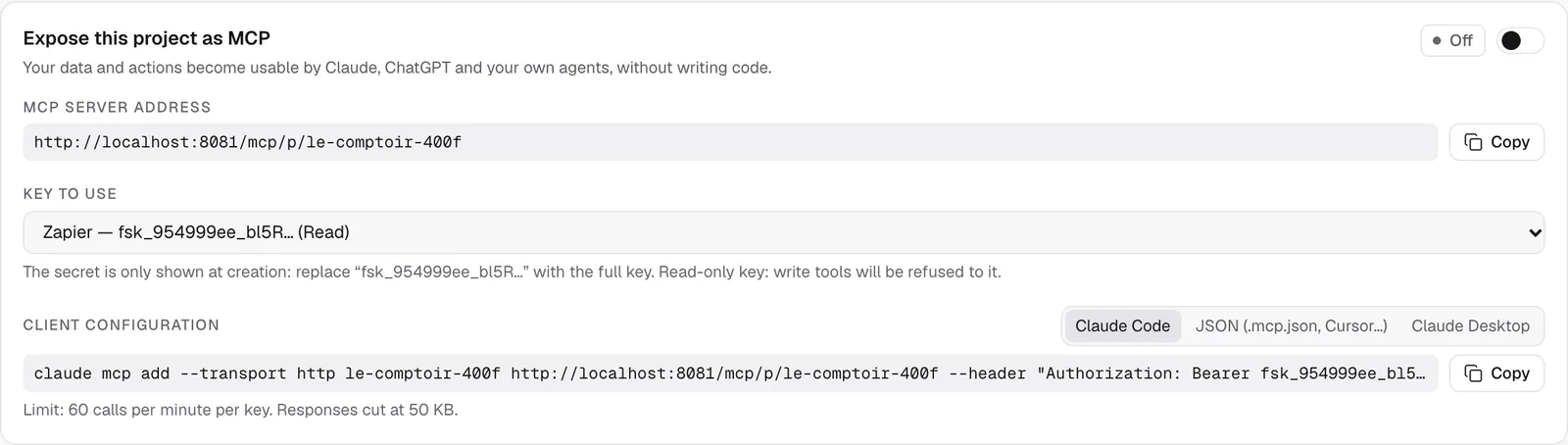
- Open Dashboard › MCP, then the Expose this project as MCP card.
- Turn on the switch at the top right: the badge changes from Disabled to Active.
- Copy the MCP server address.
- Under Key to use, pick the key the assistant will present. A Read key can't use the write tools.
- Under Client configuration, choose your tool (Claude Code, JSON (.mcp.json, Cursor…), Claude Desktop), click Copy, and paste the configuration into that tool.
- In the text you copied, replace the beginning of the key shown with the full key you saved when you created it.
Note
Claude Desktop goes through the
mcp-remotebridge, which needs Node.js on your computer.
Choose which tools are exposed
The Detected tools card lists one tool per route of the published API.
- Read tools are turned on by default.
- Write tools (create a booking, edit a product…) are turned on one by one, with their own switch.
- Refresh tools reads the API again after a new publish.
Routes that upload files are ignored. If no route is detected, check that your published site is responding and that its API provides its description (/openapi.json, included by default in FromScratch apps).
Follow the usage
The Latest MCP calls card shows the tool, the key used and the result of each call: OK, Error, Refused (read-only key) or Limit reached.
Limits
- 60 calls per minute per key.
- Responses are cut off at 50 KB.
- Turning the switch off cuts access immediately. Revoking a key cuts access for the assistant using it.
FAQ
The assistant says it has no access.
Check that the server is Active, that the full key is in the configuration and that it hasn't been revoked. A read-only key can't write.
Is my private data exposed?
Only the routes of your API, and only to people who have a key. Turn on write tools only for assistants you trust.
Related
Was this page helpful?
Thanks for your feedback!
Couldn't send your feedback. Please try again later.